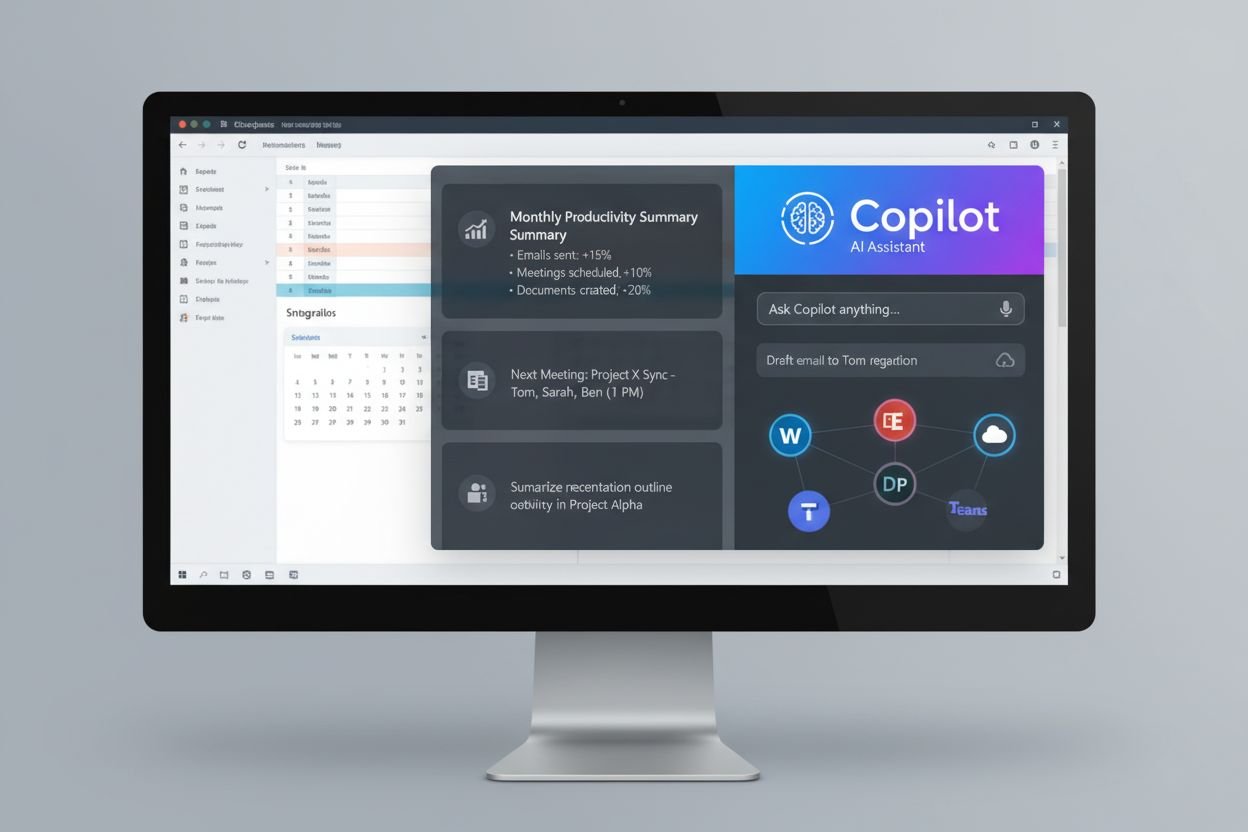
AI Presentation Design in 2026: Make Clear, Accessible Slides Without Losing Accuracy
AI design tools can help with layouts, titles and image ideas. The hard part remains human: deciding what matters, checking the facts and making each slide easy to use. This guide walks through a practical workflow for work, class and community talks.
Let one slide answer one question
A manager needs to pick between two plans. Instead of a slide packed with text, show the two costs, the main risk and the choice needed. Put extra detail in notes. Check the slide on a phone to see if people can read it. AI can help arrange the parts, but the presenter must check every number and make the decision clear.
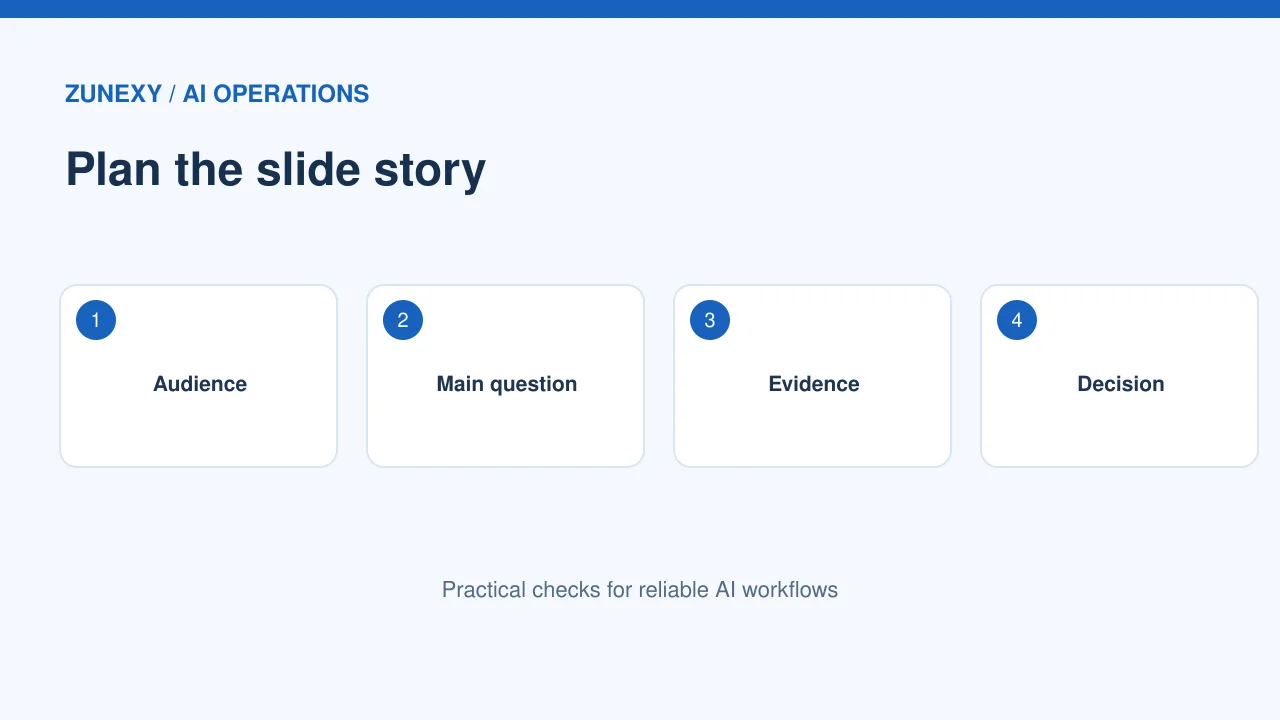
Start with the audience
Why it matters
An AI slide tool can make a deck look neat in seconds. It cannot know what your audience must do after the talk. Write one sentence about the audience, their main question, and the action you want. Then list only the facts that answer it.
Try this
For a team update, a useful goal might be: explain why a deadline moved and ask for a new decision. That calls for a timeline and a short set of options. It does not call for 25 decorative slides about teamwork.
Make a plain outline first
Why it matters
Before asking AI to design, draft a short story: problem, evidence, options, decision and next step. One idea per slide is a good check. Group facts that belong together. Delete any repeated claim. A clear outline makes design faster.
Try this
Try a six-slide test. Slide one states the decision. Slides two and three give evidence. Slide four compares choices. Slide five notes risks. Slide six names an owner and date. Ask AI for layout ideas only after the points are solid.
Keep AI away from invented facts
Why it matters
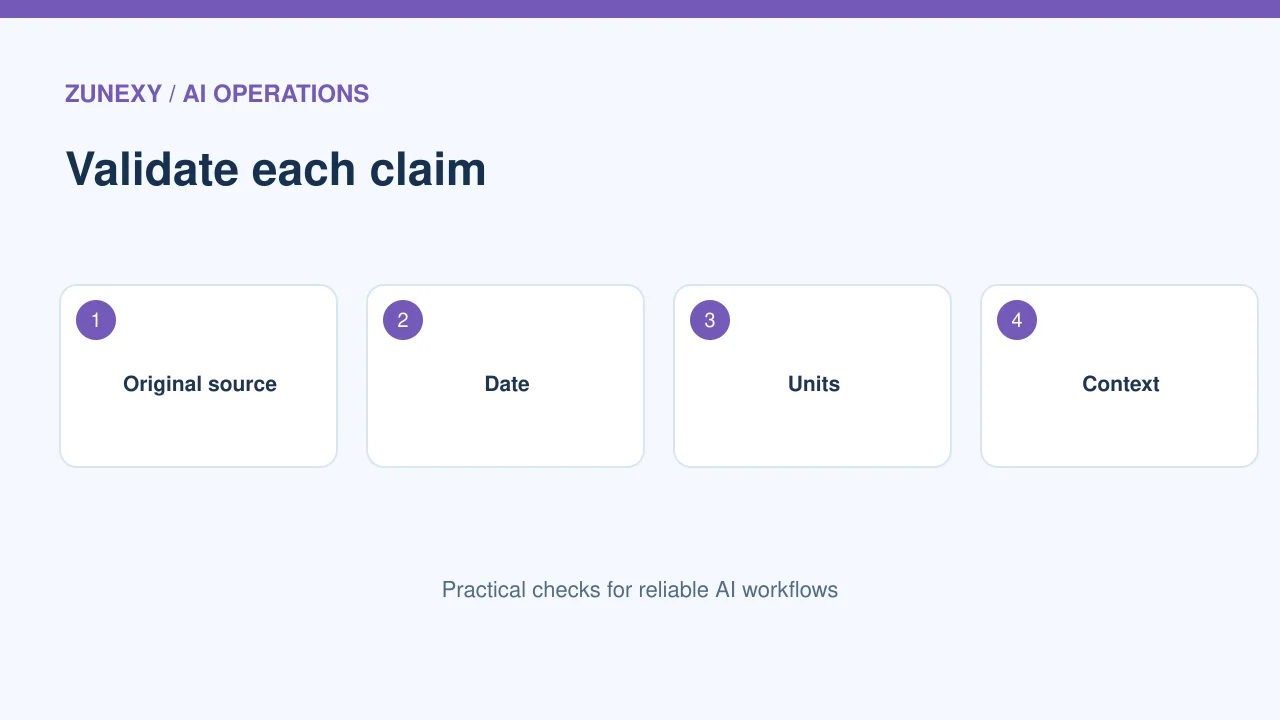
AI can fill empty space with claims that sound right. It may invent a figure, quote or product detail. Flag every number and source in the draft. Open the original report before putting a statistic on a slide.
Try this
If a tool suggests that a change saved 40 percent of time, do not use it unless your own records support it. Show the actual baseline, test period and calculation instead. A plain honest slide wins more trust than a striking false number.
Choose readable text
Why it matters
A slide is meant to be read from a distance or on a small screen. Avoid tiny text blocks and dense tables. Use clear headings and short labels. Make sure dark text has enough contrast against light backgrounds, or vice versa.
Try this
Build a quick test: shrink the slide to phone size and ask whether the title and key point are still clear. If not, split the slide or remove detail. Move extra explanation to speaker notes or a linked handout.
Use accessible layouts
Why it matters
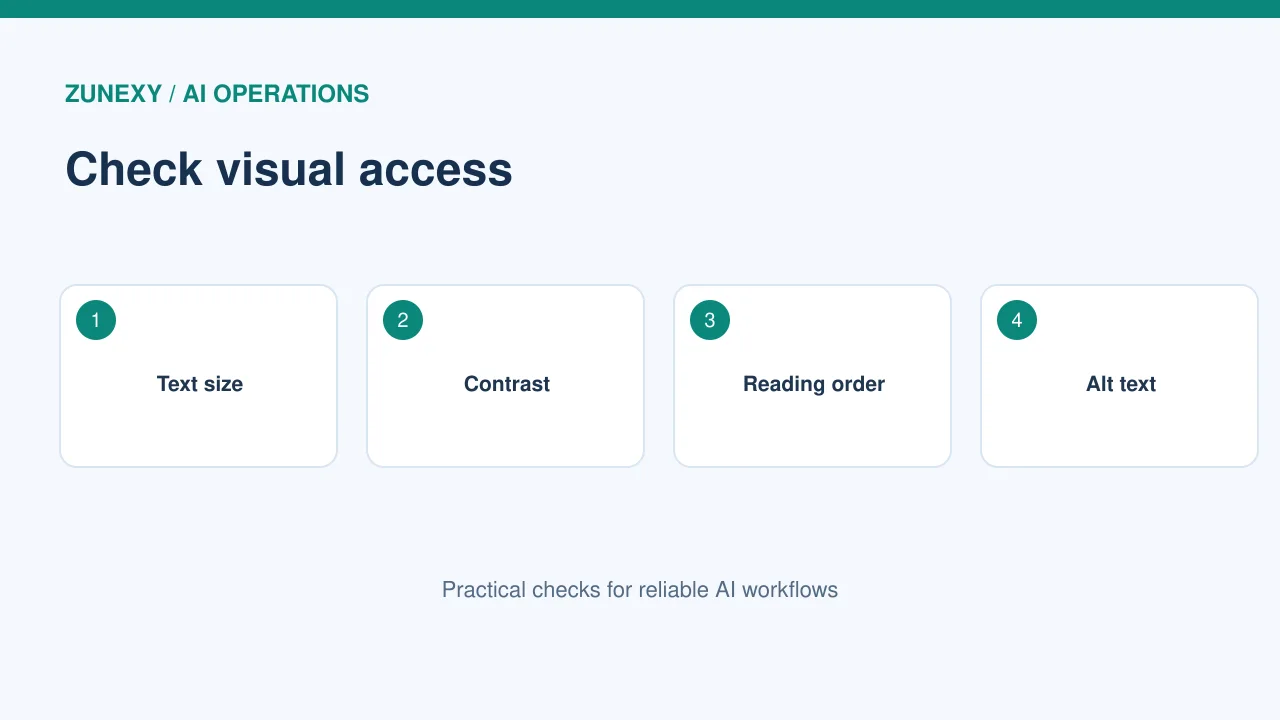
An attractive deck can still be hard to use with a screen reader. Keep a logical reading order, use real slide titles, and add meaningful image descriptions. Do not depend on color alone to explain a chart.
Try this
[Microsoft](https://support.microsoft.com/en-us/accessibility/powerpoint/make-your-powerpoint-presentations-accessible-to-people-with-disabilities) advises checking reading order, contrast and alternative text in PowerPoint. The built-in Accessibility Checker can flag several issues. It cannot decide whether your explanation makes sense. So add a human review.
Treat visuals as evidence
Why it matters
A chart should help people see a change, gap or choice. Use the simplest form that shows the point. Label units and time periods. Avoid decorative icons that look like data. Ask where every image came from.
Try this
For a budget update, a bar chart may show planned and actual spend by month. A process diagram may explain why work slowed. Either is more useful than a glossy picture of people at a meeting. AI art is fine for atmosphere. But not as a substitute for measured facts.
Protect private documents
Why it matters
Some AI design tools ask you to upload a full proposal, plan or customer list. Check the vendor’s data handling and retention settings before sharing. Remove personal data that the deck does not need.
Try this
A small firm can use a redacted outline in the AI tool and add sensitive numbers later in its approved editor. Share only with named reviewers. Check document permissions after export, especially if the source deck includes notes that were not meant for the audience.
Keep brand rules simple
Why it matters
Set a small design guide: two fonts, a few colors, headline size, image style and footer placement. Give those rules to the AI tool. Then review each slide for drift. A consistent system looks better than a new visual trick on every page.
Try this
For a company with a blue logo, use the brand blue as one accent, not as the background for every slide. Put plain dark text on a light surface. Reserve strong colors for decisions and warnings. Reuse the same chart colors for the same meanings.
Review speaker notes
Why it matters
A deck can be easy to read yet hard to present. Write two or three spoken points per slide. Include definitions for terms the audience may not know. Keep notes separate from the visible slide.
Try this
Rehearse once without reading the screen. Mark where the audience might ask for proof. Put source names in notes and add a brief source label on a factual slide. That makes questions easier to answer without filling the main design with links.
Export and test the file
Why it matters
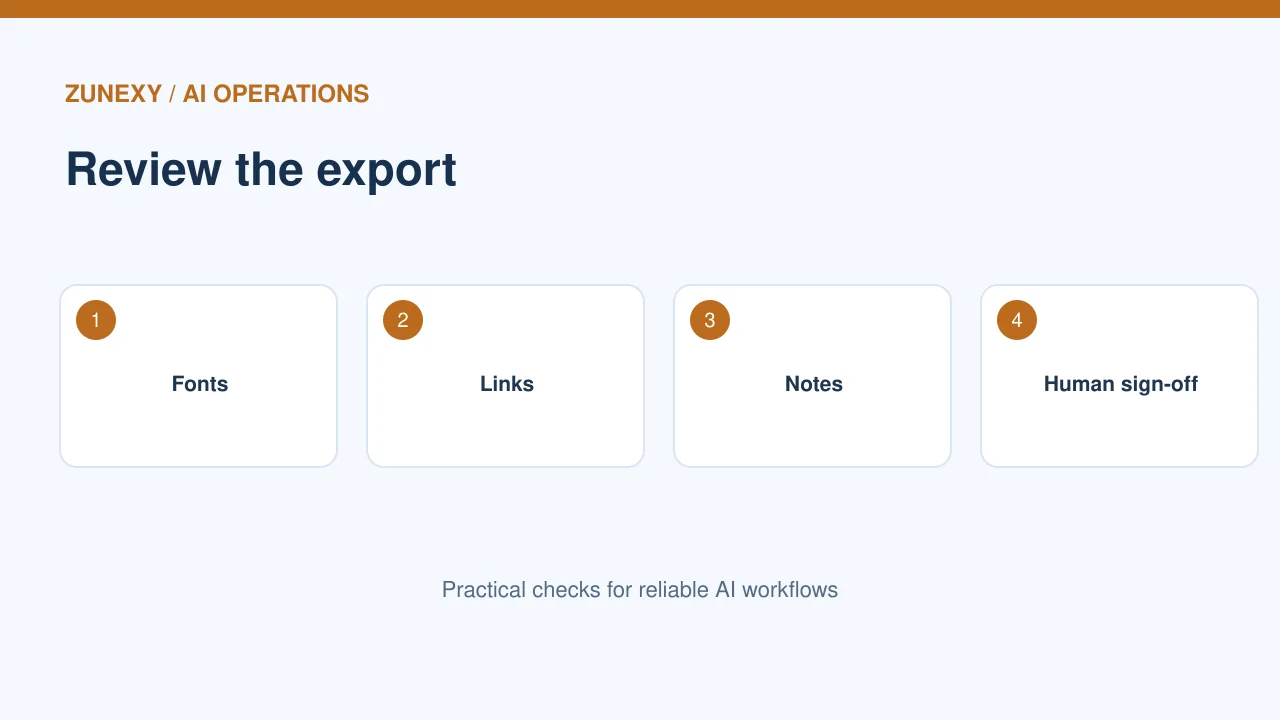
Fonts can change when a deck moves between tools. Charts may become images. Videos and animations may stop working. Export the file, open it on another device, and test the text, layout and links.
Try this
Check a PDF version too if you plan to share one. Confirm page order, readable labels and correct source notes. If people will edit the deck, give them a native file with real text boxes and charts when the tool supports that.
Use a final human pass
Why it matters
An AI-generated deck should have a named editor. That person checks facts, tone, sources, spelling, visual accuracy, accessibility and the final call to action. A second reviewer can catch gaps the author no longer sees.
Try this
Ask someone who missed the work to scan the deck for two minutes. Can they tell what happened, why it matters and what is needed next? If not, fix the story before adding more visual polish. That simple test protects the audience’s time.
Make charts honest
Check scales and comparisons
AI can draw a chart that seems clean but hides a weak comparison. Look at the axis start, units, labels and date range. A sharp rise may look larger if the scale begins far above zero. A chart of two groups may be unfair if one uses a longer time window. Use a table when exact values matter more than a trend.
Show uncertainty when it matters
If the figures are estimates, say so on the slide. Do not turn a range into one exact promise. For a forecast, show the main assumption and what could change it. If a visual uses mock data, label it as an example before anyone treats it as a real business result.
Before you share the deck
- Check every claim against its source.
- Give each slide one clear point.
- Review contrast, text size and reading order.
- Add alt text where an image carries meaning.
- Open the exported file on another device.
- Make the requested next step clear.
Good slides help the audience think and act. Use AI for drafts and design choices, then apply human judgment to everything that could confuse or mislead.