AI Document Processing for Small Businesses: A 2026 Accuracy Checklist
A small business may handle hundreds of invoices, forms, receipts, and signed documents each month. Copying details by hand takes time, yet a wrong number can create a costly mistake. AI document processing can pull fields from scanned files and send them to a work system. The hard part is not reading text from a clean page. It is knowing which values are safe to use and which need a person to check them.
This guide explains how to test document tools on real business files, keep private data safe, and build a review step that people can use. The goal is a dependable workflow, not a promise that every page will process itself.
Pick One Document Type and One Clear Job
Start with a narrow task such as reading invoice number, supplier name, total, tax, and due date. Do not begin by asking the same workflow to handle contracts, passport scans, medical forms, and hand-written notes. Each kind of file has a different layout, data risk, and definition of success. A smaller scope makes errors easier to find.
Ask the person who uses the fields what happens next. If the total enters accounting software, a wrong decimal point matters. If the supplier name is used only for search, minor text differences may be less severe. Set rules based on the action that follows each field.
Use a real but safe sample
Collect a mix of documents that reflect normal work. Include clear digital PDFs, phone photos, low-quality scans, multi-page files, and forms from several vendors. Remove or mask details that are not needed for testing. A tool trained on one tidy template may fail on a file that looks ordinary to staff.
Understand What the Tool Extracts
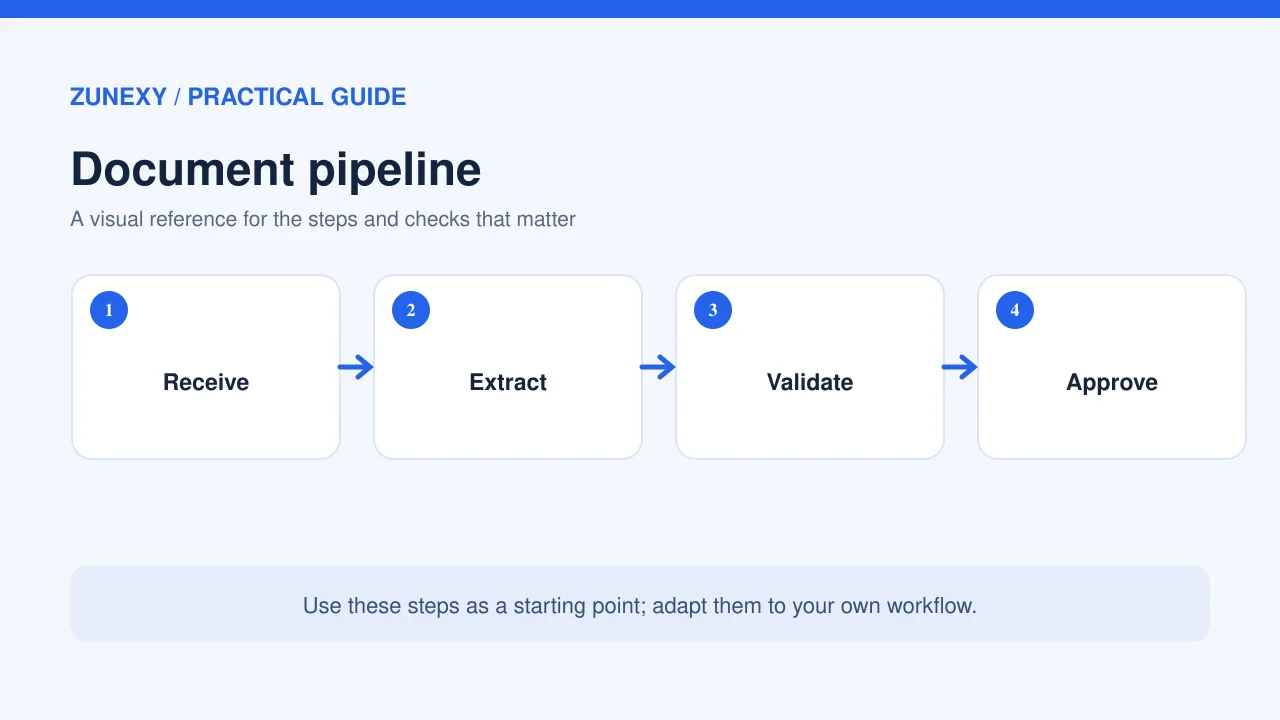
A document workflow often has several steps. It reads text, detects layout, finds fields, and maps them to your data system. Some products use OCR to read printed letters. Others use models that relate words to tables or labels. A complete result can still be wrong if the tool maps the value for subtotal into the field for total.
The Microsoft Document Intelligence layout guidance describes the extraction of text, tables, headers, and selection marks. Those features are useful, but support for a type of document does not mean it will read your own documents without errors. Test the shapes and languages you actually receive.
Separate extraction from business checks
First ask whether the text or field was read correctly. Then ask whether the value makes sense for the business. An invoice may have a valid total but a due date in the past. A receipt may show two currencies. The second kind of check should live in your workflow rules, not only in the model.
Measure Accuracy Field by Field
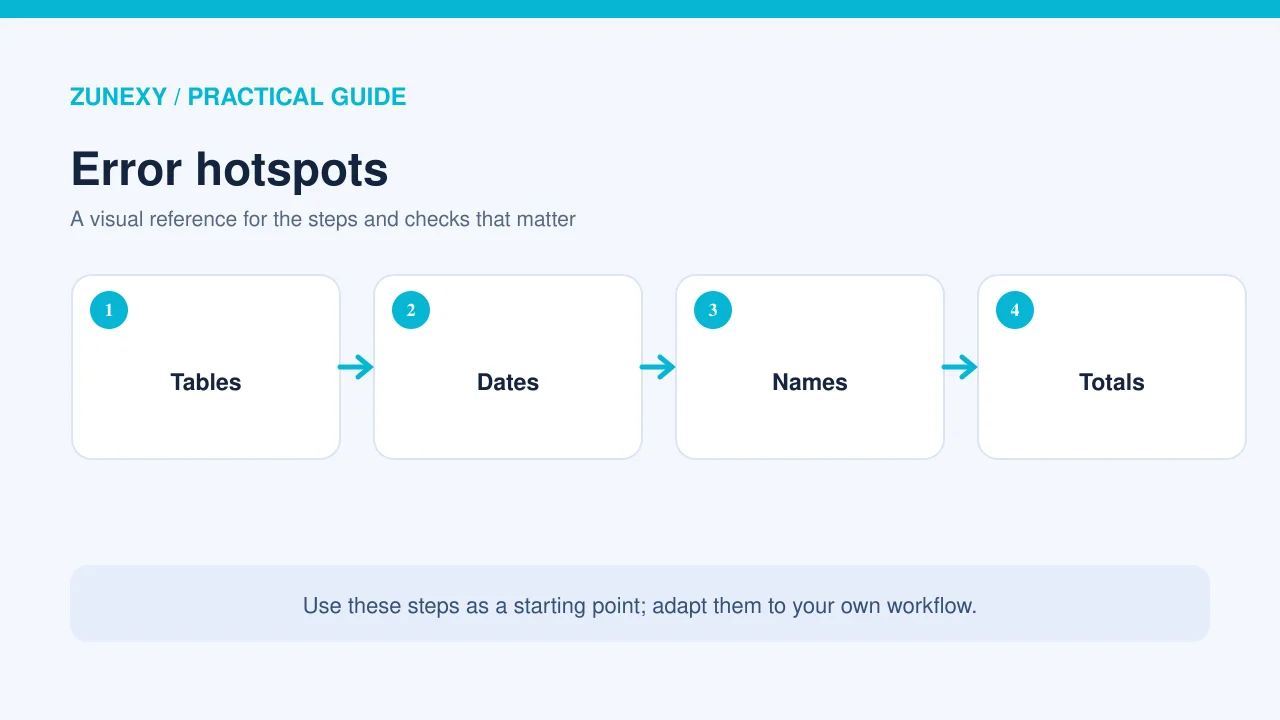
Do not use a single claim such as 99% accurate without knowing what was measured. A tool may read supplier names well but miss tax values. Compare each output with a verified answer prepared by a reviewer. Count correct fields, missing fields, and wrong fields separately. Keep a list of error types that require manual review.
The Google Cloud Document AI documentation explains precision and recall as ways to evaluate extracted fields. Precision asks how often predicted values are right. Recall asks how much of the expected data was found. Both matter. A tool that returns only easy fields may appear precise while missing many required values.
Check the dangerous fields first
For an invoice, pay close attention to bank details, currency, total, tax, invoice ID, and supplier identity. For a delivery note, item quantity and address may matter more. Rank the fields by the harm an error could cause. Give high-risk values a stronger review rule than low-risk labels. This can save staff time while keeping important decisions under control.
Confidence Scores Need Context
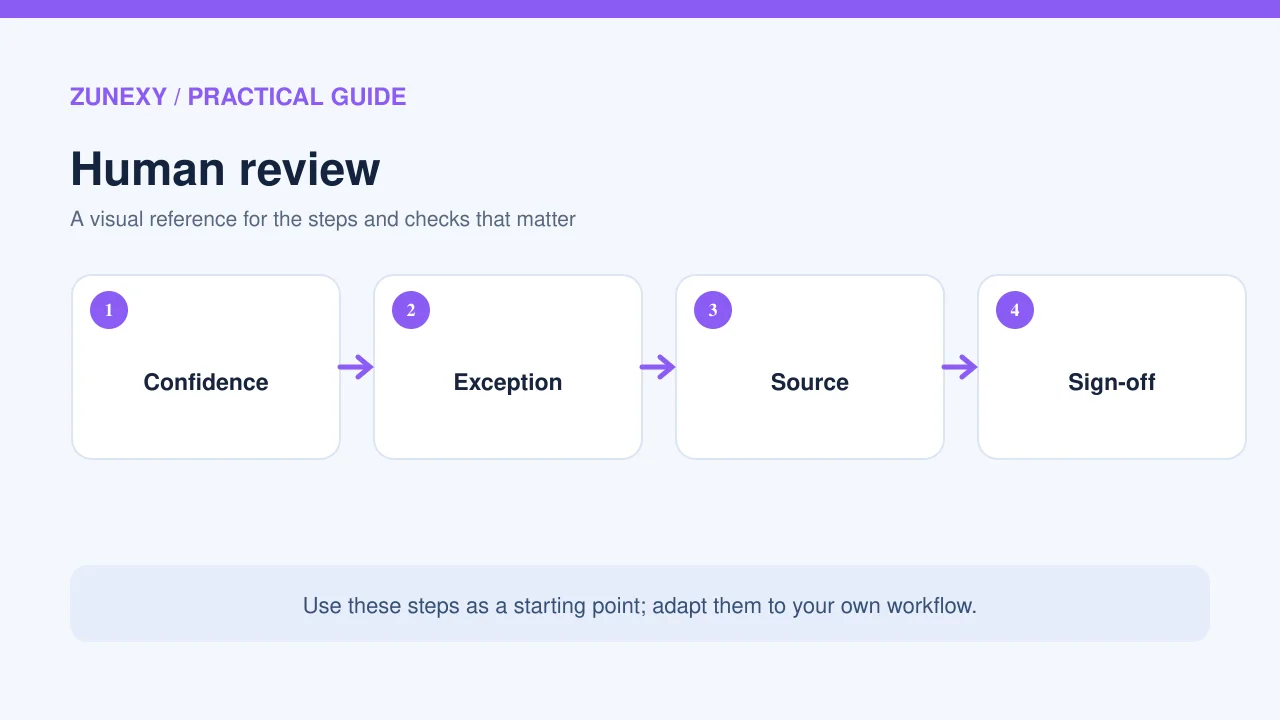
Some services return a confidence value with a field. A high value is a useful signal, not proof of truth. A tool can be confident about the wrong date if the layout is unusual. Use confidence to decide what needs review only after a pilot shows how scores relate to actual errors in your documents.
Microsoft’s transparency note recommends a representative pilot and gives an example of sending lower-confidence results to human review. Its example threshold is not a rule for every business. Choose your own threshold from test results, and always review fields where a mistake could trigger a high-impact action.
Design a Useful Human Review Screen
A person should see the source page next to the extracted fields. Highlight where the value came from if the tool supports it. Let the reviewer correct the value, mark a field as missing, and send the record back without copying every line. Avoid a screen that asks someone to retype the whole document; that removes much of the benefit.
For a supplier invoice, show the invoice total and currency beside the cropped source area. If the value looks wrong, the reviewer can fix it and approve. Keep a record of the correction for later quality checks. Do not treat a reviewer click as proof that the model was right. It means a person accepted that record after checking.
Prevent duplicate records
A file may be uploaded twice or retried after a network error. Use an invoice ID, supplier context, and an idempotent process to check for likely duplicates before posting to accounting. A model should not be the final judge of whether to pay a supplier. If the record is unclear, send it to a person rather than making a guess.
Keep Private Files Under Control
Documents may carry names, addresses, phone numbers, account details, and contract terms. Ask where the service stores them, who processes them, how long they remain, and whether they are used to train a model. Keep only what the task needs. A scanned form may include far more personal data than the few fields you intend to extract.
The UK Information Commissioner’s Office offers guidance on data minimization in AI. Rules differ across countries, so global teams should check their own legal duties. The practical habit is useful everywhere: limit access, limit retention, and avoid sending data to more systems than needed.
Run a Two-Week Pilot
In the first week, process a sample set while staff still use the normal manual route. Compare outputs with verified fields. Log each wrong or missing value and note the source quality. Group errors by layout, scan quality, language, and field type. If a tool fails mainly on one supplier’s forms, you may be able to solve that case without replacing the whole product.
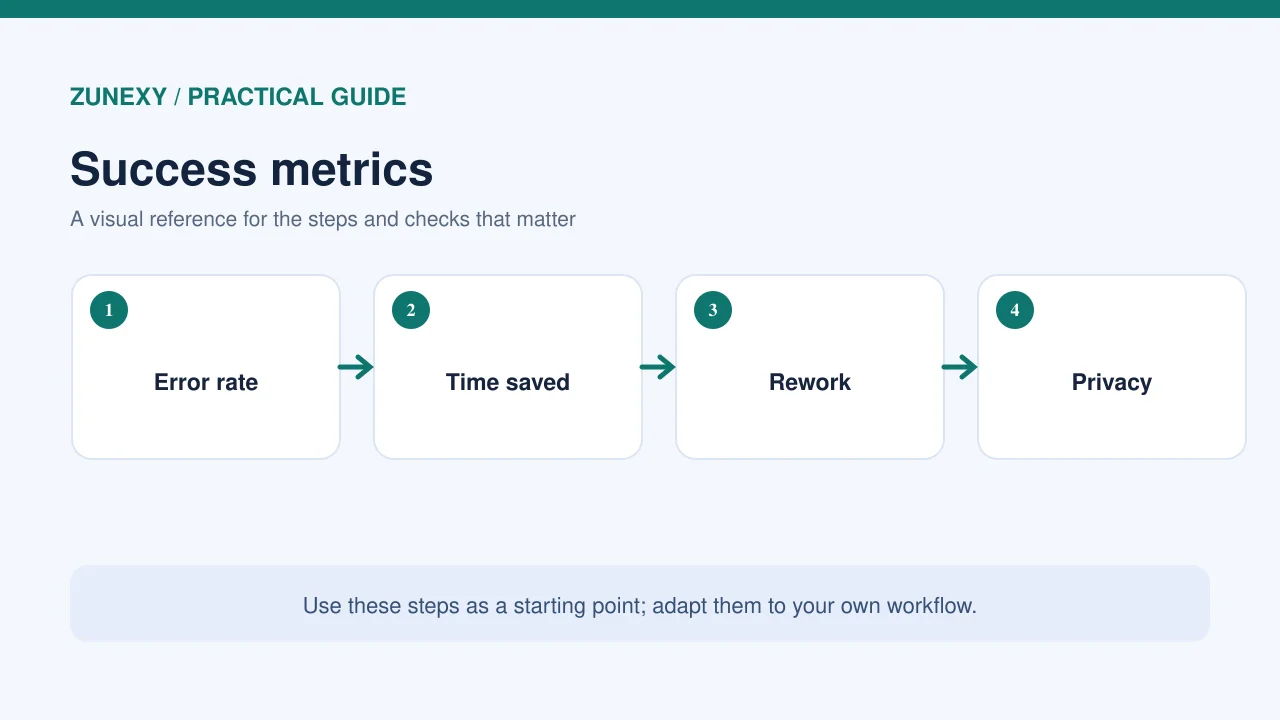
In the second week, test the review screen and downstream system using a safe staging account. Measure minutes per document, correction rate, duplicate rate, and whether the workflow saves time after review. Ask reviewers which steps feel slow. A fast extraction stage is not useful if staff spend longer finding the right source page.
A practical scorecard
- Correct high-risk fields versus verified answers
- Missing required fields per document
- Time spent checking and correcting output
- Files routed to human review
- Duplicate records blocked before posting
- Data deletion and access rules confirmed
Keep the measures visible to the person who owns the workflow. Do not use one average to hide severe errors. If a bank account number is wrong, treat the issue as important even if almost all names and dates are correct.
Handle Exceptions in Plain Language
Create clear outcomes such as ready for review, needs a better scan, missing a key field, or unsupported format. Tell the user what to do next. If a document is too blurry, ask for a new copy. If the total conflicts with line items, show the mismatch. Never invent missing digits to force the workflow to pass.
A good exception path helps a team trust the system. It also gives managers useful facts about which documents cause trouble. Review those patterns each month. Some may call for better scanner settings, clearer forms, or a change to the template. Not every problem calls for a more complex model.
Compare Products on the Full Workflow
Check file type support, table handling, language coverage, review controls, exports, retention rules, and price at your real volume. Ask for a trial using your own test set. Compare the quality of the fields you need, not only the number of pages a vendor claims to support. Include the cost of people checking output and the effort to fix errors.
Avoid a product that makes it hard to export records or leave the service. Your source files and corrected values should stay available under your control. If a new model is deployed, rerun the test set before switching. Document processing changes can affect a small but important group of forms.
Final Takeaway
AI document processing works best when a business starts with a clear document type and treats extraction as a draft. Test accuracy field by field, review the risky values, and protect private files throughout the flow. A simple process with good checks can be more reliable than a broad automation that hides its errors.
Sources
Google Cloud Document AI evaluation, Microsoft Document Intelligence transparency note, and ICO data minimization guidance.