Passkey Rollout for Staff Accounts in 2026: A Practical Team Guide
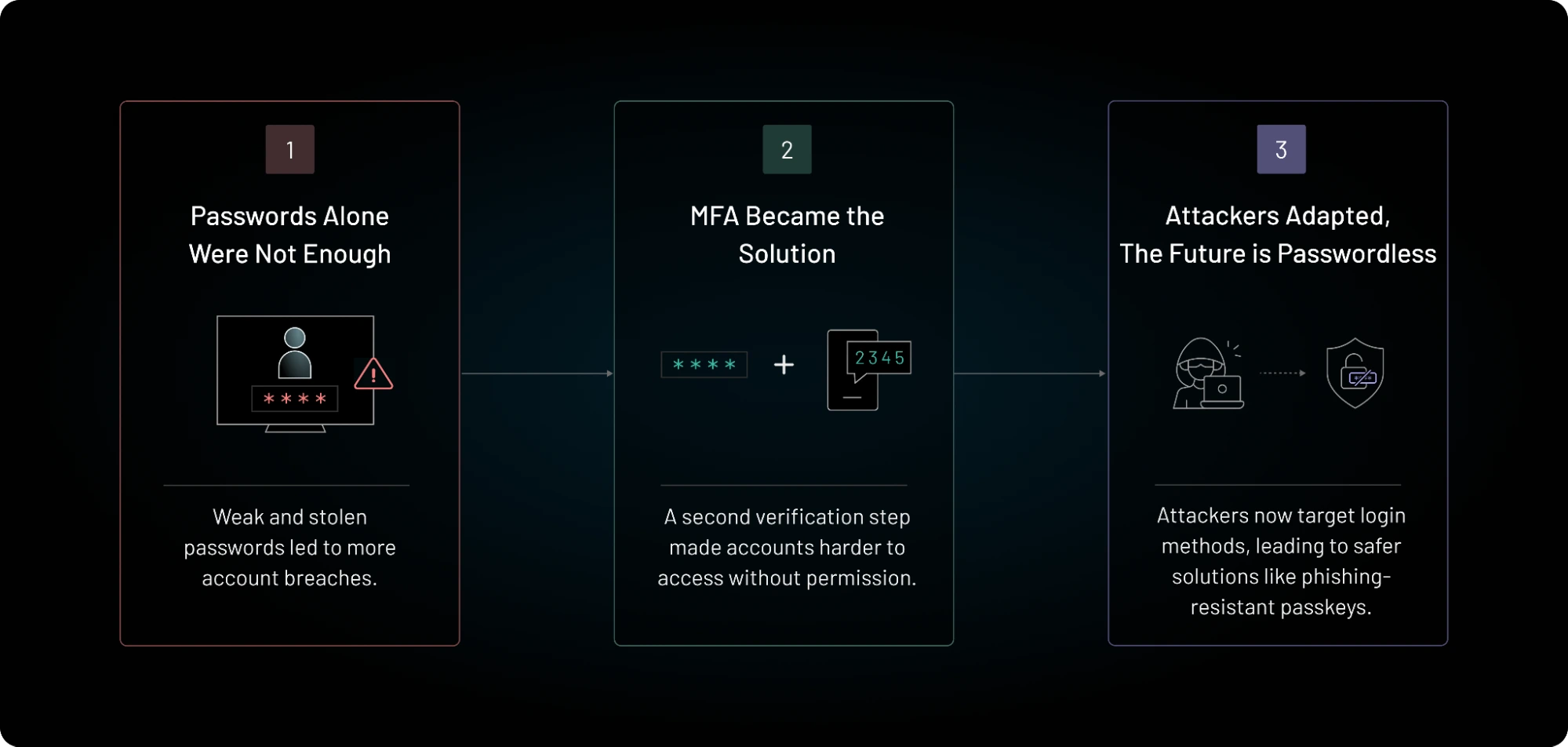
Passkeys can make staff sign-in safer and simpler, but rollout needs more than a new button. This guide shows how a team can test devices, plan recovery, and reduce weak fallback routes. It is for organizations in any country, including remote teams with mixed devices.
Start with the Accounts That Matter
Pick a small pilot
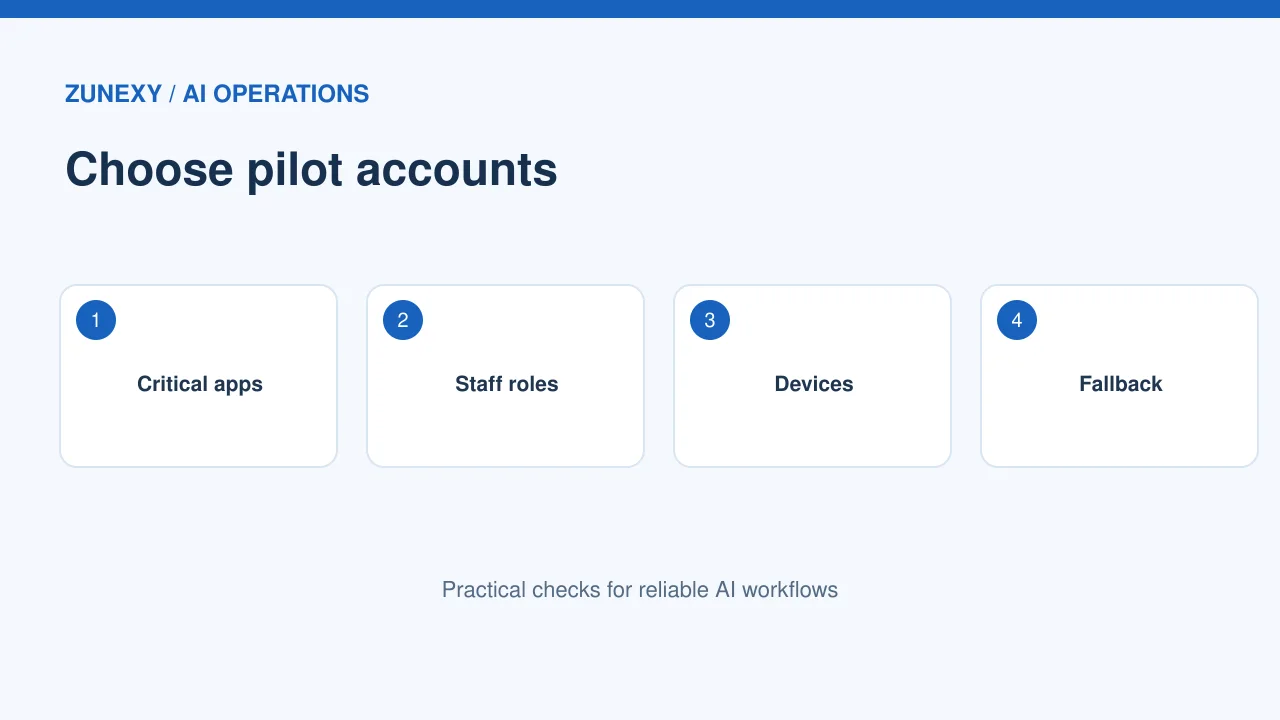
A passkey plan works best when it begins with a clear list of staff accounts. Include the email service, the identity provider, the payroll portal, and any app that can reset passwords for other apps. Pick one service that supports passkeys well. Do not try to move every system on the first day. A team of ten staff from different roles can show what works and what breaks. Ask each person to use the new sign-in for routine work for a full week. Keep a written note of each device, browser, and error.
Look beyond the login screen
The test is not done when a passkey appears to work once. Ask a pilot user to sign in from an office laptop, a phone, and a second approved device. Have them lock the screen, sign out, and start again. Check whether the app asks for a password at an odd step. Some older apps may send users to a separate login page. Record the path. If a fallback still accepts a weak password alone, the overall account may remain exposed.
Choose a Passkey Type for Each Role
Understand synced and device-bound keys
A synced passkey may move between a person’s approved devices through an account ecosystem. A device-bound passkey stays tied to a device or a security key. Neither choice suits every job. A small remote team may value easy recovery when a laptop is lost. Staff who manage financial systems may need tighter device controls. The FIDO Alliance enterprise guidance sets out the main tradeoffs. Use that guidance to build a short decision record for each type of user.
Set rules for shared computers
A passkey on a shared reception desk can create a confusing link between a person and a machine. Do not treat a shared device like a personal laptop. Give each staff member their own identity. Use a managed security key or a firm-approved sign-in method when the platform supports it. Check how sign-out works and how the next shift starts. Make it hard for one worker to enter another worker’s account by mistake. Test this before the front desk joins the rollout.
Plan for Lost Devices
Make recovery a real process
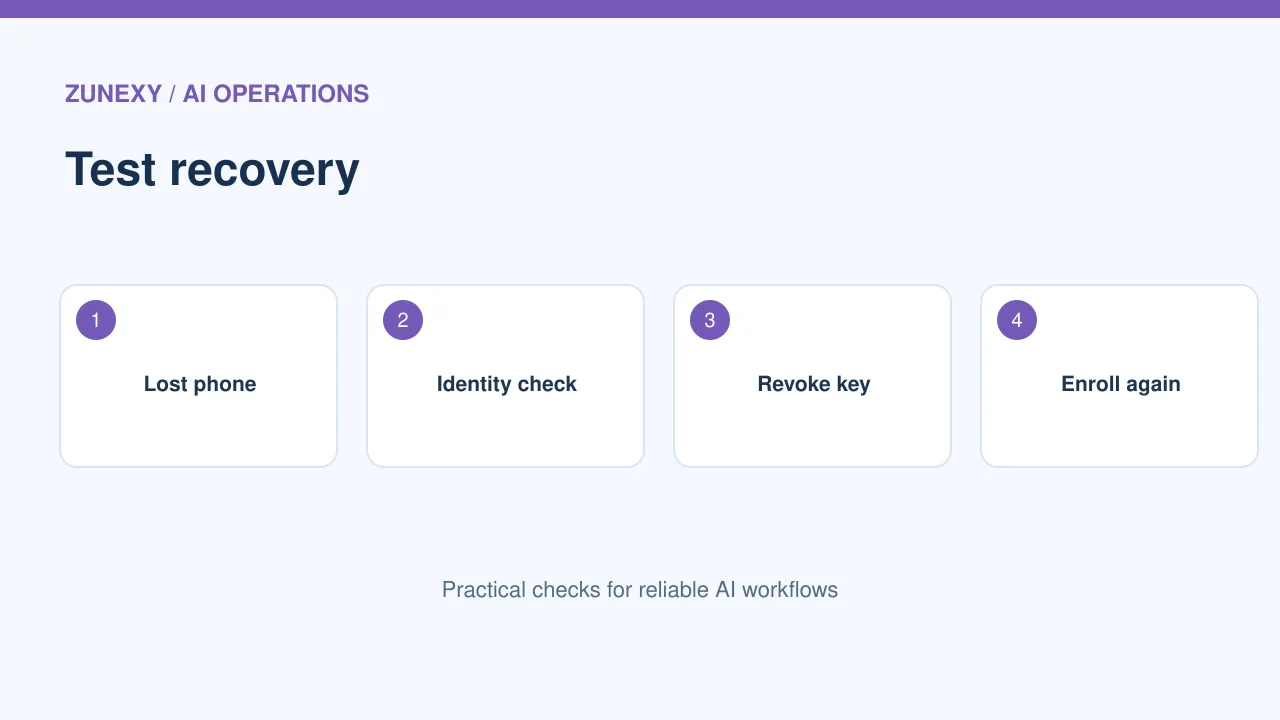
People lose phones and laptops. They also change jobs or get new devices. Write a recovery path before the first passkey is issued. State who checks the person’s identity, who approves the reset, and how a temporary sign-in works. A help-desk agent should not reset a key merely because a caller knows an email address. Use a trusted contact method and a second check. Log each recovery event. Test the process using a spare account so nobody learns the steps for the first time during an outage.
Protect the recovery desk
A criminal may try to bypass a strong passkey by tricking support staff. Teach the help desk to spot urgent stories about a lost phone and a meeting in five minutes. A real emergency does not remove the need to check identity. Require a second person to approve recovery for admin accounts. Send an alert to the worker’s old contact channel when a recovery starts. If that alert looks wrong, the worker should know where to report it.
Keep Old Sign-In Paths Under Control
Find password-only access
List each way a user can enter the system. Include web login, mobile apps, desktop tools, old mail clients, API credentials, and recovery codes. A new passkey button does not remove every old route. Ask the app owner to show which paths can be blocked and which must stay. Test a password-only attempt from a fresh browser. If it still works without a strong second factor, note it as an open risk. Do not mark the rollout complete until the main bypass paths are addressed.
Handle legacy apps honestly
Some work software cannot use passkeys yet. Do not claim every app is passwordless. Put those apps on a separate list with an owner, a stronger sign-in layer where possible, and a target review date. Single sign-on may help if the app supports it. A strict device rule may help too. If no safe bridge exists, leave the gap visible and reduce what the account can do. This is more useful than hiding a problem in a progress slide.
Train Staff in Plain Language
Show one real sign-in
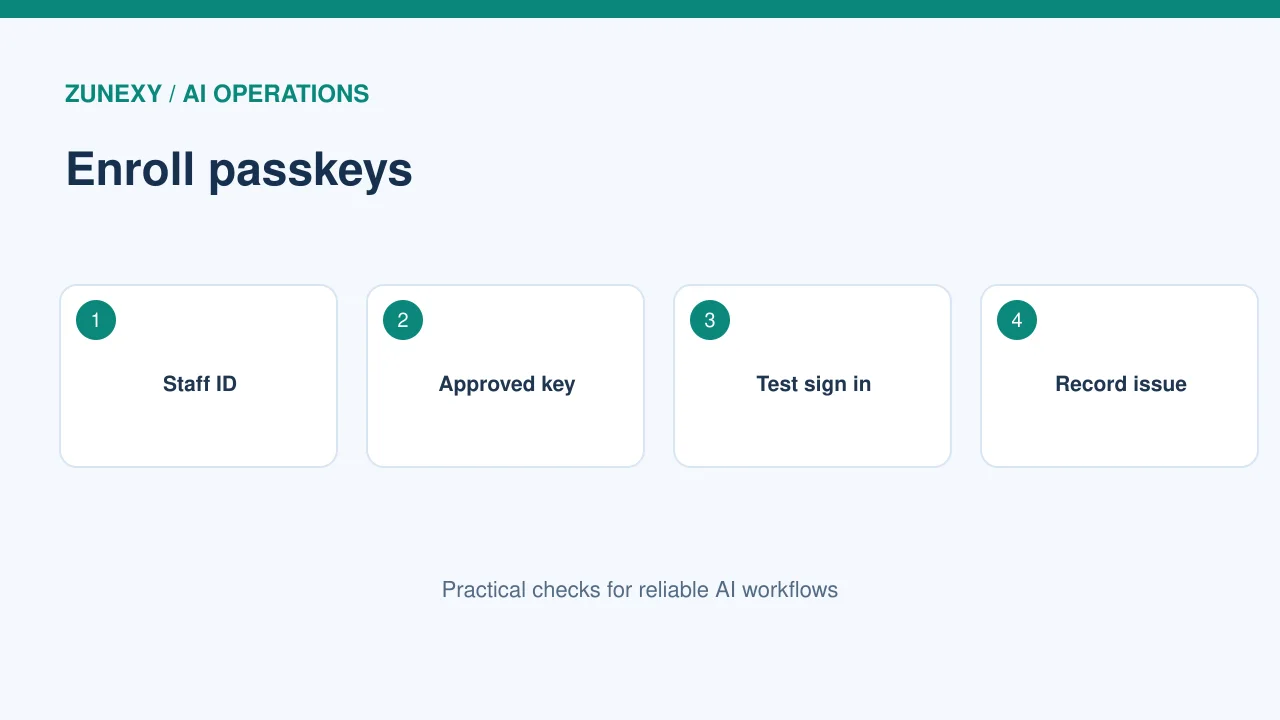
A useful training session takes only a few minutes. Open the app, select the passkey option, approve the device prompt, and sign out. Then repeat it from a second approved device. Explain that a passkey is tied to the real service, which helps resist fake login pages. Do not make staff memorize technical terms. Let each worker try the steps while a helper is nearby. Ask what felt unclear. Fix the help page based on that feedback.
Explain what changes during travel
Global teams sign in from many places and networks. A staff member may use a work laptop at home, in a hotel, or at a client office. Explain which devices and networks are allowed. If policy blocks a device, the message should say who to contact. Avoid telling staff to turn off security controls to finish a task. A short travel test helps teams discover these issues before a worker is far from the office.
Measure the Rollout
Track adoption and help requests
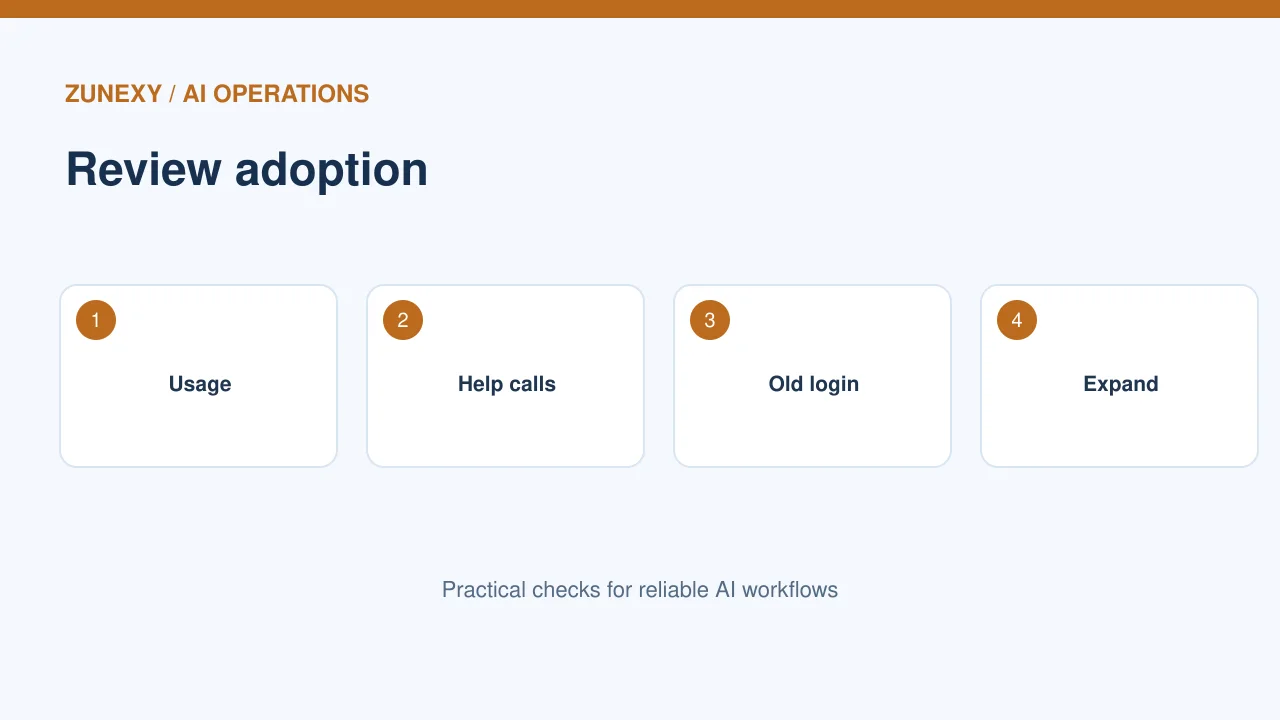
Count active passkey users, not just accounts that enrolled once. Measure successful sign-ins, use of password fallback, lost-device tickets, and failed recovery checks. Review the numbers by team rather than ranking individual staff. A rise in help calls may mean the setup guide is unclear. A low rate of repeat use may mean a common app still asks for passwords. Each result should lead to a fix, not a blame list.
Set a sensible go-live gate
Before expanding from ten people to one hundred, check three conditions. The pilot users can sign in each day. The recovery process works without shortcuts. The help desk can explain the steps in simple terms. Ask the security lead and the staff lead to sign off together. Roll out in waves so the team can catch new device issues. Keep a pause button for a serious access problem.
Review Passkeys After Launch
Check new app integrations
An app update may add a new login route or change the passkey prompt. Review new integrations when they launch. Confirm that role changes and staff departures still remove access on time. Do not assume a passkey is the whole access policy. Session controls, device health, and limited admin rights still matter. Schedule a quarterly check of high-risk accounts and a shorter review after major app changes.
Know when to revoke access
If a device goes missing, start the firm’s lost-device plan at once. Disable the affected sign-in route, revoke active sessions where the provider supports it, and assess any related account activity. Check whether the user had other enrolled keys. Ask for a fresh secure enrollment only after the identity check. Keep the incident record separate from ordinary help tickets so it can be reviewed later.
Give a Small Team a Working Checklist
Use a practical seven-day plan
On day one, list key services and owners. On day two, check passkey support. On day three, write the lost-device steps. On day four, enroll the pilot group. On day five, test fresh sign-ins and password fallbacks. On day six, review help requests and fix the guide. On day seven, decide whether to expand. The exact days can shift, but every decision needs an owner and evidence.
Avoid a false finish line
A passkey project is not done because the login screen looks new. It is done when people can work, old sign-in gaps are understood, and recovery can resist abuse. The best next step is often small: close one fallback, train one support shift, or test one new device. Keep a short record of what changed and why. That record will save time when a new employee joins or an app changes.
Final Takeaway
Start with one service, watch how staff really sign in, and test recovery before scale. Use the FIDO Alliance implementation resources for current platform guidance. Keep an owner for each gap. A calm rollout can raise account security without making everyday work harder.