SaaS OAuth App Permissions Audit in 2026: A Small-Team Cleanup Guide
Connected apps can quietly keep access to mail, files, and business data after a project ends. This guide shows how to review OAuth permissions, find unused SaaS integrations, and remove risky access without disrupting work.
A safe way to remove old app access
A staff member once linked a reporting app to a shared folder. The team no longer uses the app, but its access still works. First, check who owns it and what it can read. Then tell the owner before you remove access. Run the next report to make sure work still gets done. This small test avoids both an open door and a surprise outage.
Why app connections need review
A small team may connect many tools to email, calendars, files, CRM systems, and cloud workspaces. A quick consent screen can grant an outside app broad access. The risk does not end when a person closes the app. Some grants and refresh tokens can remain active.
A realistic case
This article covers the SaaS connections behind business work, not browser extensions or API code. The goal is to find which outside apps have access, whether that access is still needed, and how to remove it without breaking work.
Know what permission was granted
An app may ask to read a profile, view mail, send messages, or manage files. Some access acts on behalf of a signed-in user. Other access can run as an application without that user present. Those modes have different risks.
A safer check
Do not judge a connection only by its name. Read the actual scopes or roles, who approved them, and which users or resources they affect. An app that needs to create one calendar event may not need access to every mailbox.

Build a connected-app inventory
Start with the admin consoles for identity, email, file storage, and other core SaaS tools. Export or record app name, publisher, owner, granted scopes, consent date, users, last activity, and business purpose. Link each entry to a responsible employee.
A realistic case
The first pass may find dozens of old integrations. Mark unknown entries for review. But do not revoke them all at once. Some background jobs have no obvious daily user. Ask the team whether the app supports a current workflow before changing access.
Use the platform’s permission view
For Microsoft Entra, the admin center can show enterprise apps and the permissions granted by users or administrators. Microsoft also documents ways to remove grants. Review the exact type before taking action.
A safer check
On other platforms, look for connected apps, third-party access, marketplace installs, and service accounts. The screens differ. Save a screenshot or an export for the owner. But do not copy sensitive tokens into a shared spreadsheet.
Rank apps by data and action
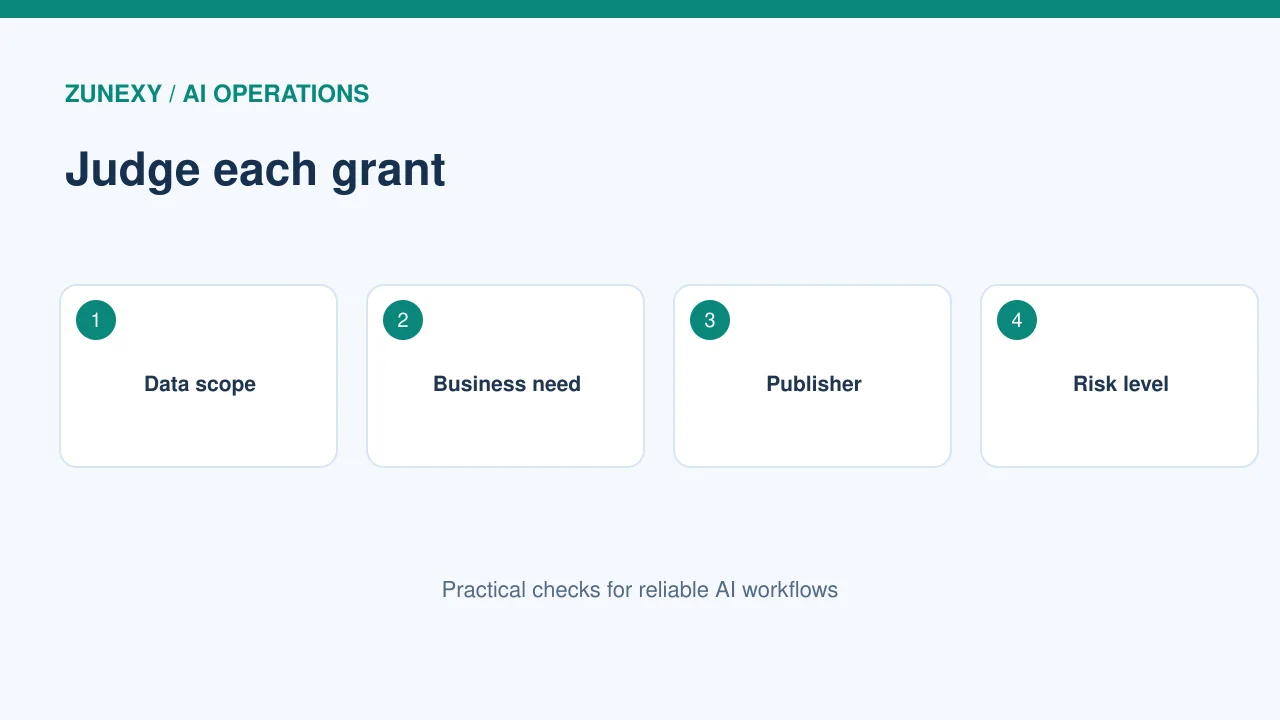
A read-only calendar tool is not the same as an app that can send email or edit customer files. Rank access by data sensitivity, ability to change records, number of users, publisher trust, and how much the business depends on it.
A realistic case
An integration that can read invoices and modify payment details deserves a close review. A meeting poll tool with limited access may be lower risk. Use a short risk label and a reason, not just a red or green icon.
Check who approved the connection
Find whether an individual user or an administrator granted access. Admin consent can affect many people. A user grant may still expose a large mailbox or file set. Read the consent policy and the app’s publisher information.
A safer check
Microsoft’s user consent guidance discusses limiting consent to verified publishers under suitable policies. Publisher verification helps assess identity. But it does not prove that every permission is necessary or every app is safe.
Review dormant and orphaned apps
A former employee may have connected a tool that nobody now owns. A project may have ended while the integration remained. Compare the inventory with active teams, contracts, and recent usage.
A realistic case
Ask the business owner whether the app is still needed. If not, plan its removal. If the owner has left, assign a new owner before you make a decision. A connection without an accountable person is a risk even when it has not caused a known incident.
Revoke access in a safe order
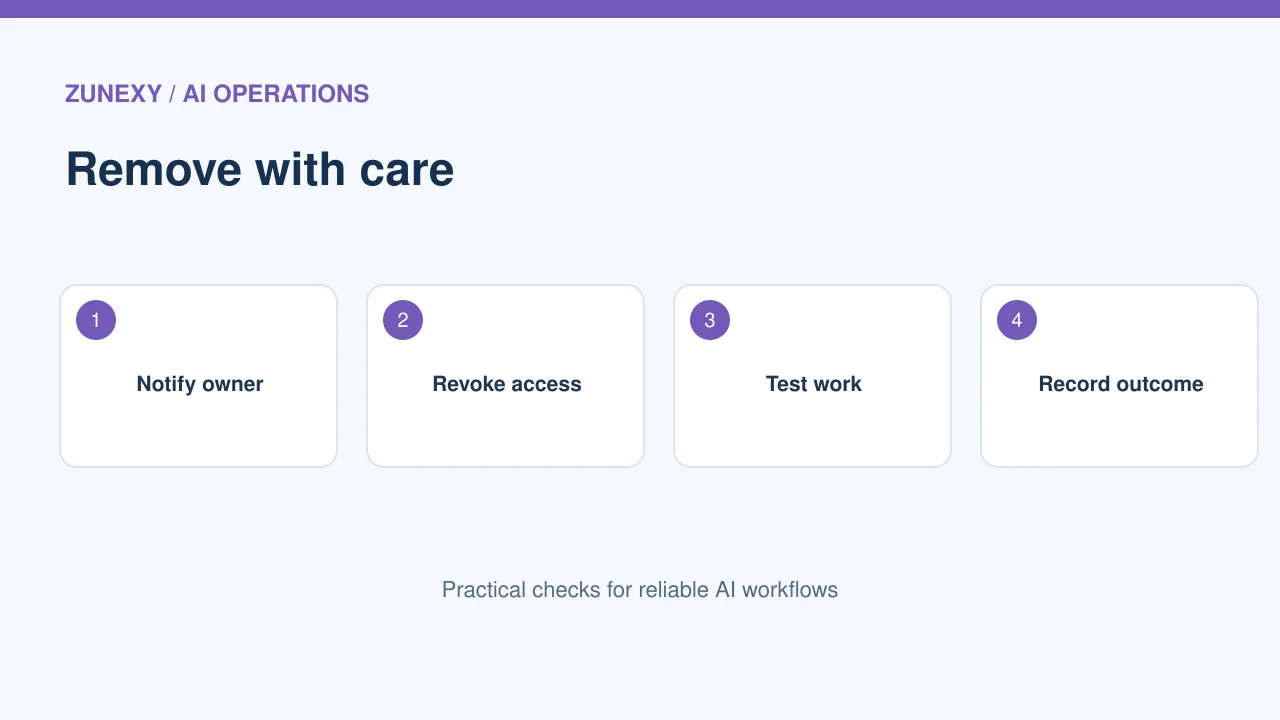
Before removing a grant, identify dependent workflows, scheduled tasks, and service accounts. Disable the app in a test or low-risk group if possible. Then revoke permissions, confirm old tokens no longer work, and watch for failures.
A safer check
A simple remove button may not end every route. The Entra documentation notes that revoking a current permission does not always stop a user from consenting again. Your user-consent policy must support the decision. Also review tokens, sessions, and local copies held by the outside provider.
Watch for suspicious consent requests
An attacker may send a link to a genuine identity provider screen and persuade a person to grant an app powerful rights. This is different from stealing a password. The consent itself can become the access route.
A realistic case
Teach staff to pause when an app asks for unusual rights. They should check the publisher, purpose, and scopes. Provide an easy way to request approval for legitimate tools so people do not feel pushed into secret workarounds.
Set a repeat review cycle
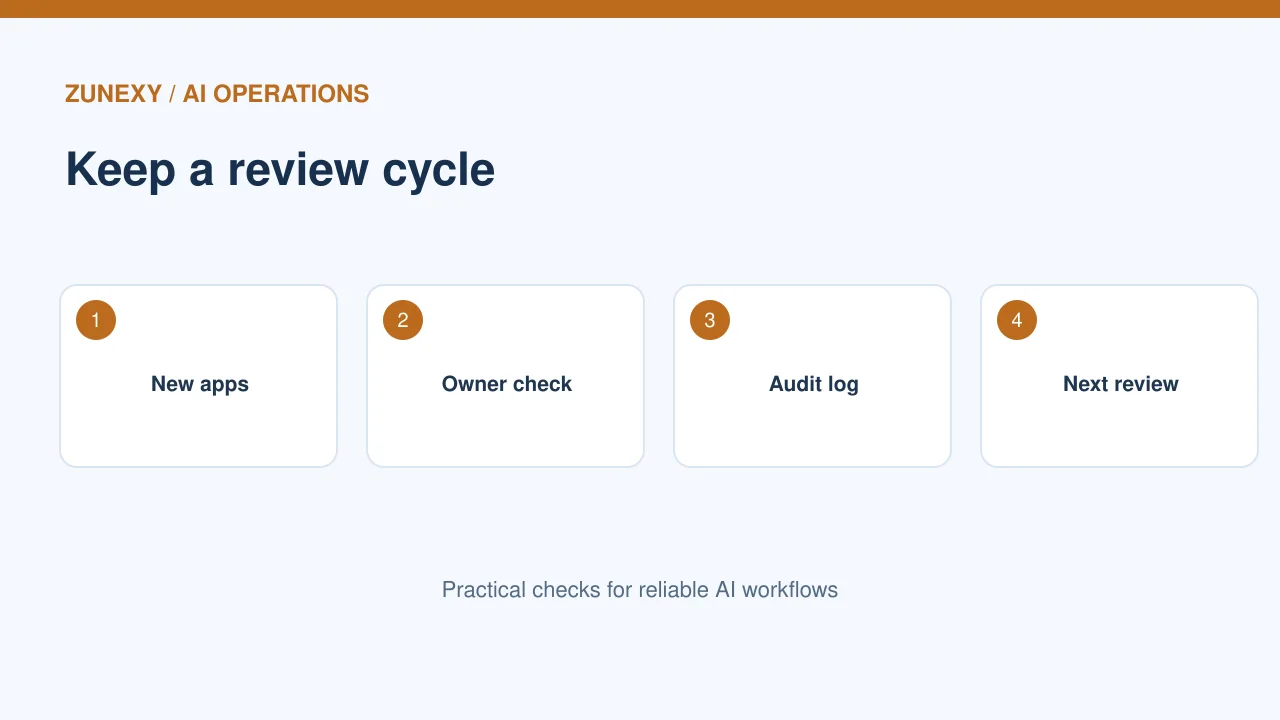
A quarterly review can work for many small teams, while high-risk grants may need more frequent checks. Track new apps, changed scopes, owners who left, and integrations that have not been used. Ask whether each permission still matches the task.
A safer check
Keep an exception record with an expiry date. If a tool needs broad access for a short project, review it when that project ends. A recurring review is easier when the inventory is kept up to date after every new approval.
Measure the cleanup
Count the apps with known owners, grants that were narrowed, unused connections removed, and risky approvals awaiting review. Avoid using total app count as the only measure. A business may need many legitimate tools.
A realistic case
A good result is that every powerful grant has a clear purpose, review date, and removal path. The team should also know how to respond when a suspicious app appears. Test that process with one low-risk example before an incident occurs.
First audit checklist
- Export connected apps and permission grants.
- Assign an owner and purpose to each app.
- Rank access by data and action risk.
- Check unused and orphaned connections.
- Test safe revocation and prevent re-consent where needed.
What to do after you remove an app
Check whether the business task still works
Access cleanup is not done when you click Remove. Ask the app owner to run the task that once used the connection. For example, if a reporting tool sent a weekly file from a shared drive, check the next report date. A missing report can point to an app that still had a valid purpose. Restore only the needed permission after review, and note why the team needs it.
Keep a small evidence record
Write the app name, owner, date, permission change, and next review date in a sheet or ticket. Do not put tokens or secret values in that record. If an app is no longer in use, also check the vendor account and billing plan. Removing a consent grant does not always close an account or end a paid plan. A clear record helps the next reviewer tell a planned cleanup from an unexplained outage.
Final thought
An app audit is a business process, not a one-time purge. Review the permissions people granted, keep what is useful, and remove what no longer has a clear purpose.