AI Live Captions for Global Teams in 2026: An Accessibility Setup Guide
Live captions can help more people take part in a call, webinar, or training session. Yet a tool alone does not make a meeting accessible. Here is a practical way to set up audio, check accuracy, handle privacy, and prepare a backup.
A real caption check
Imagine a remote call with people in three countries. The captions are clear until two speakers talk at once. A name, price or date may appear wrong. Pause and ask the speaker to repeat the key point. Put the final choice in the meeting notes. Live captions help people follow a call, but a written check still matters when a detail may affect a deal.
Why captions are a workflow, not a button
AI captions can make a live session easier to follow. But turning them on is only the first step. A tool may miss names, accents, numbers, and short replies. It may fail when two people speak at once. An accessible meeting needs good audio, clear roles, and a way to fix errors.
A real meeting example
Imagine a project meeting with staff in three countries. One person joins from a noisy cafe. Another uses a headset. A third relies on captions. If the system labels the wrong speaker or drops a deadline, the problem affects the whole team. The right process makes the text useful during the call and after it.
Know what the standard asks for
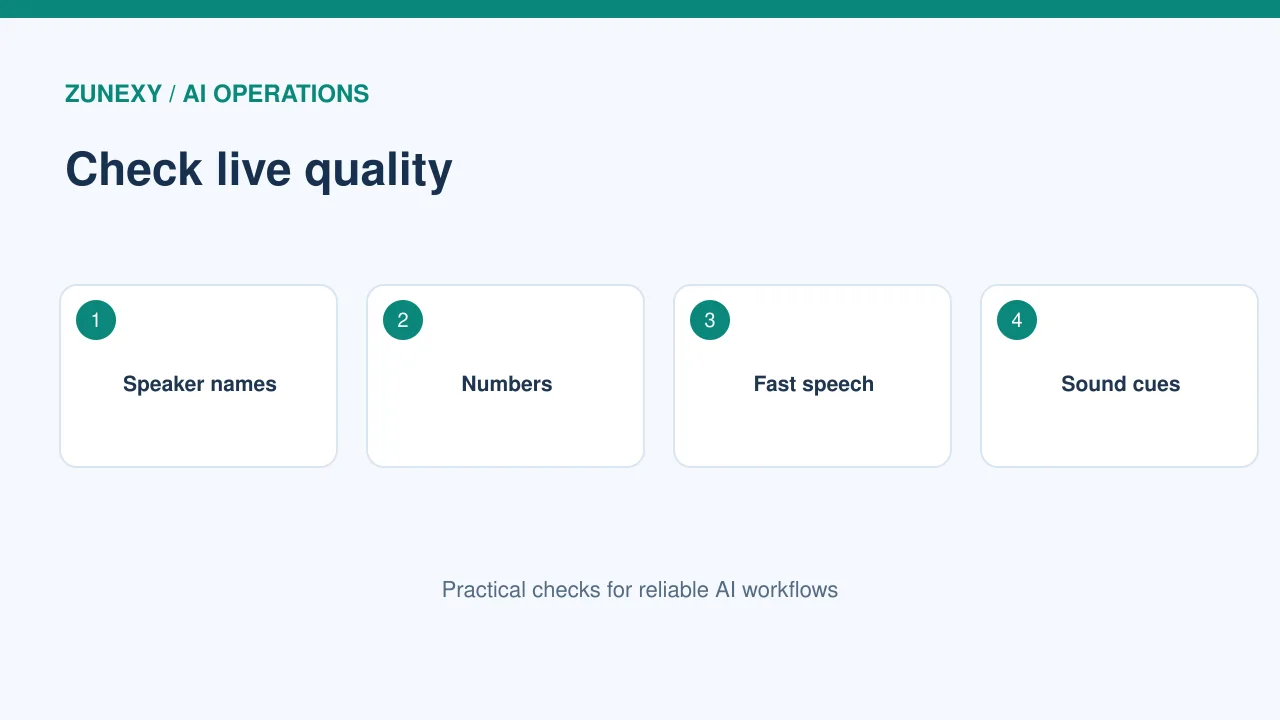
The World Wide Web Consortium publishes WCAG 2.2, a widely used web accessibility standard. Its Level AA success criterion 1.2.4 calls for captions for live audio in synchronized media. Captions are more than words from speech. They can include speaker information and sound cues needed to understand the content.
What works in practice
This does not mean every AI caption tool meets a standard by default. The product, the event setup, and the quality of the text all matter. Some sessions need a trained captioner or a specialist service. Check the rules that apply to your own event and region.
Start with clean sound
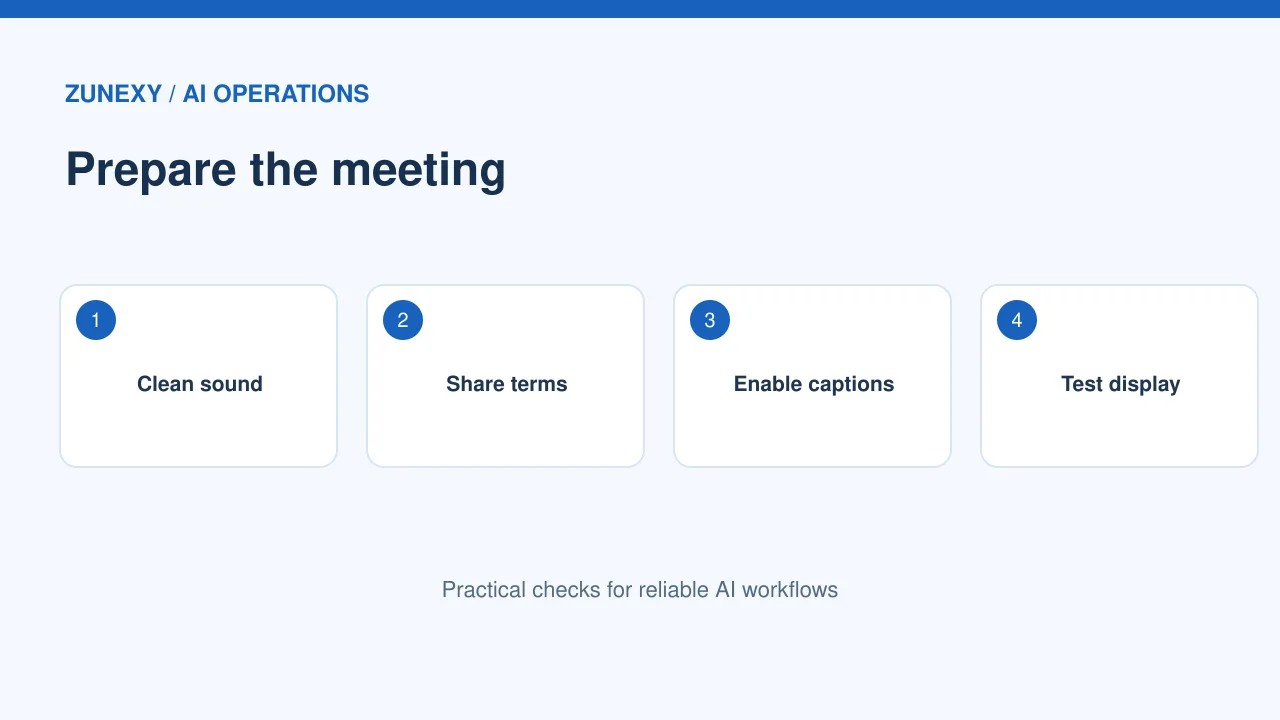
The most useful upgrade may be a headset, not another AI feature. Place microphones close to speakers. Reduce room echo. Ask people to mute when they are not talking. Use one speaker at a time for key decisions. Keep a backup audio route if the main connection fails.
A real meeting example
In a hybrid room, test the far-end audio before guests join. A laptop mic in the middle of a large table often picks up chairs and air systems as well as speech. A room mic or individual microphones can make captions more accurate and easier to read.
Set names and specialist terms
Names, product codes, technical terms, and local place names are easy to get wrong. Where a tool allows a vocabulary list, add the terms people will use. Do not assume the tool has learned your internal abbreviations. Put hard words in a shared agenda before the meeting.
What works in practice
For a medical research group, a single letter in a drug name can change meaning. For a finance team, a mistaken currency or decimal point can alter a decision. Ask the speaker to repeat key terms, then have a person confirm them in the final record.
Choose live captions or a human service
AI captions are often a good fit for routine team calls where users can ask for a repeat. Public events, legal meetings, and high-stakes sessions may need trained human captioners or a reviewed service. Compare accuracy, latency, language support, speaker labels, cost, and the ability to recover after a network fault.
A real meeting example
Run a real trial with your people. Ask participants who rely on captions what was hard to follow. A vendor demo with a single clear speaker is not enough. Test accents, fast speech, two speakers, screen sharing, and background noise.
Handle multilingual meetings with care
Some products translate captions as well as transcribe speech. Translation adds another chance for error. A good summary can still lose a polite phrase, a legal term, or the strength of a request. In global teams, decide which language is the source of truth for decisions.
What works in practice
If a contract deadline is agreed in English and translated into four other languages, record the final date and owner in a shared written note. Do not rely on an unreviewed translated line as the only record. Ask bilingual staff to check terms that affect work.
Make the text easy to read
Captions should be easy to find, read, and follow. Test the font size, contrast, background, placement, and speed of updates. Avoid placing captions over slides or faces. Give people a way to adjust the view when the meeting tool allows it.
A real meeting example
For webinars, display a short agenda and explain how viewers can enable captions before the speaker starts. If captions stop, tell the audience and pause important content until access is restored. That small step shows that access is part of the event, not an optional extra.
Protect consent and privacy
A live caption tool may process audio through a service provider. The tool may also save a transcript. Before recording or retaining text, check who can access it, where it is stored, how long it lasts, and whether it is used to train models. Rules vary by place and type of meeting.
What works in practice
For a client call, tell people what service is active and whether the transcript will be kept. Limit who can download it. Remove secrets and personal details from shared notes where possible. A transcript can be useful. But it can also become a new data risk.
Review the final transcript
Live captions help in the moment. A transcript used as a formal record needs review. Ask the meeting owner to correct names, action items, dates, amounts, and technical terms. Mark uncertain passages rather than guessing what someone said.
A real meeting example
A simple review has three passes. First, confirm key decisions with the speaker. Next, check action items and owners. Then remove text that does not need to be retained. Keep the edited record separate from raw captions so readers know which version was reviewed.
Test with people who depend on captions
An accessibility check should include the people it is meant to help. Invite users with different hearing needs, devices, and language backgrounds. Ask whether they could follow the speaker, spot changes in topic, and find the right control. Do not make one user speak for everyone.
What works in practice
Try a 20-minute rehearsal before an important event. Include a fast speaker, a video clip, and a question from the audience. Note problems and fix them. A repeatable test is more reliable than a promise that the AI is accurate.
Set an owner and backup plan
Choose a person to watch caption quality during larger events. That person can report a failure, help a speaker slow down, or arrange a fallback. Write a short response plan for lost captions, missing translation, or network issues.
A real meeting example
The W3C accessibility guidance explains the role of captions and sound information. Use it as a reference when building your process. The goal is simple: people should be able to understand and take part, even when the automatic tool has limits.
Before the next meeting
- Test audio and caption controls.
- Share an agenda and hard names in advance.
- Ask users who rely on captions to test the setup.
- Confirm if transcripts will be stored or shared.
- Assign a person to handle caption failures.
Bottom line
Choose a caption tool based on the real meeting, not a feature list. Clean audio, human review, privacy checks, and participant feedback can make the service much more useful. Keep testing as the team, languages, and tools change.