AI Invoice Data Extraction in 2026: A Human-Checked Workflow for Global Teams
AI can read invoice fields from PDFs and scans, but a neat output is not proof that a bill is right. This guide shows how to set up extraction, catch errors and keep human control before a payment or accounting entry.
Decide what the tool should extract
The key risk
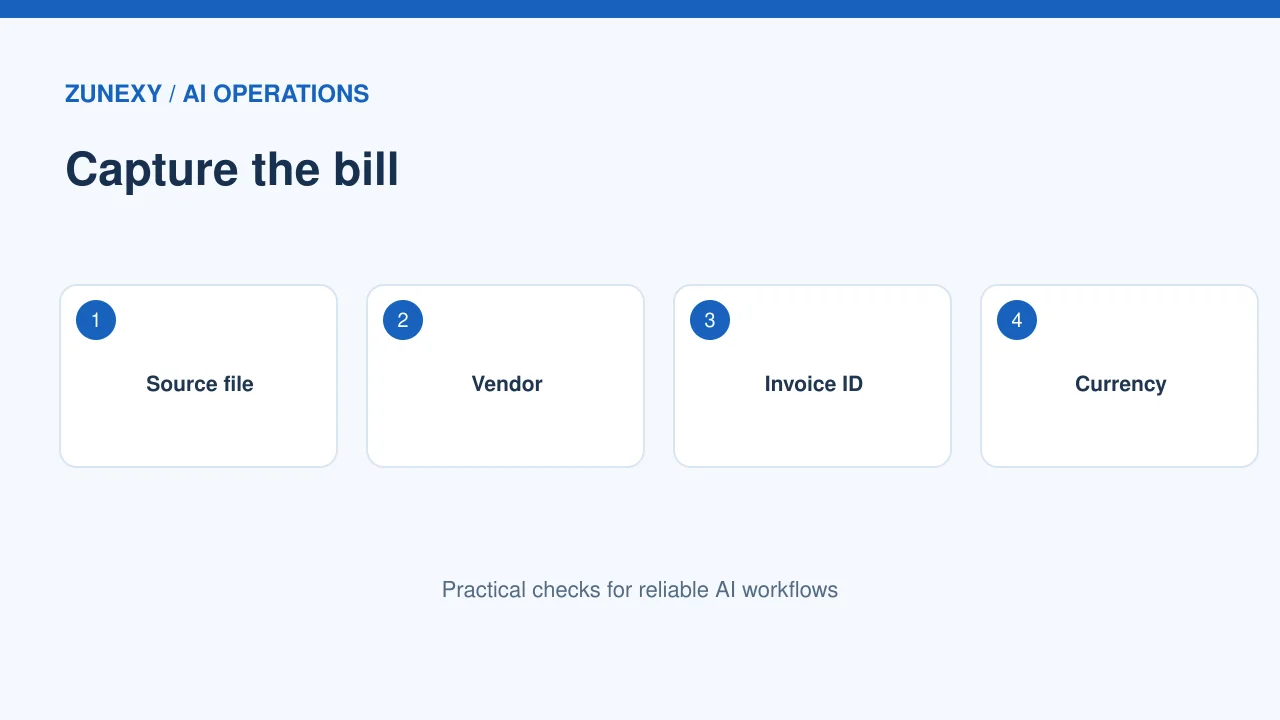
An invoice parser can save typing, but it does not know whether a bill should be paid. Start with the fields the team truly needs: supplier, invoice number, date, currency, line items, taxes and total.
What to do
Write the target fields on one page. Add the accounting system’s field names and allowed formats. A clear output map makes it easier to spot when a model returns a good-looking value in the wrong place.
Build a safe test set
The key risk
Invoices vary by language, layout and country. Some use tables, while others put totals in a corner. A tool that works on one supplier may fail on the next.
What to do
Use sample or approved redacted invoices. Include photos, PDFs, a long table and a scan with a faint stamp. Do not send real financial records to an unapproved service for a quick trial.
Compare available document tools
The key risk
The [Google Cloud Document AI processor guide](https://docs.cloud.google.com/document-ai/docs/processors-list) describes invoice fields including header and line items. [Amazon Textract](https://docs.aws.amazon.com/textract/latest/dg/analyzing-document-expense.html) offers expense analysis for invoices and receipts. The tool choice depends on file mix, regions and your workflow.
What to do
Test the same safe documents in each shortlisted tool. Compare fields extracted, time to review and how well the output fits your accounting process. Check current pricing and data terms before spending money.
Check totals with arithmetic
The key risk
A correct-looking number can still be wrong. Some invoices include discounts, shipping fees or more than one tax line. A model can pick the amount due instead of the subtotal or treat a credit note as a normal invoice.
What to do
Calculate line totals and compare them with subtotal and final amount. Allow for known rounding rules. Flag differences for review. Do not invent a tax rule when the invoice uses an unfamiliar format.

Keep currency and dates clear
The key risk
A date like 03/04/2026 means different things in different places. Decimal separators and currency symbols also vary. A global workflow should not guess these from a single mark.
What to do
Use supplier country, explicit currency code and document context when available. Keep the original text as evidence for the reviewer. If a value is ambiguous, ask a person. Do not silently change a currency amount.
Watch vendor names and duplicates
The key risk
A supplier may have a trading name, legal name and a spelling that differs across bills. A parser can output the wrong entity. It can also process the same invoice twice when one copy arrives by email and another through a portal.
What to do
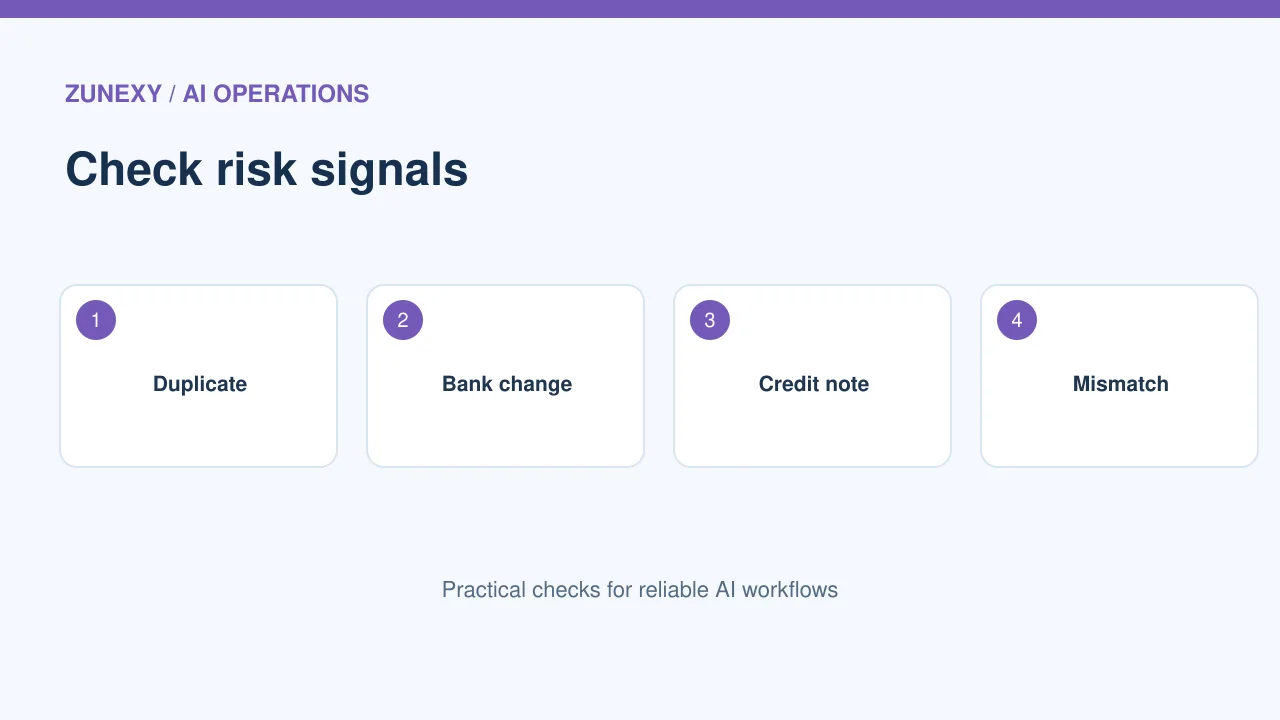
Match against an approved vendor record. Check invoice number, supplier and amount before creating a new payable item. A duplicate warning should send the record to review, not delete it without a trace.
Use confidence with care
The key risk
Some extraction services return confidence values for fields. These are clues, not proof. A model may be confident about a wrong date or miss an item it never detected.
What to do
The [Microsoft Document Intelligence guidance](https://learn.microsoft.com/en-us/azure/ai-services/document-intelligence/concept/choose-model-feature?view=doc-intel-4.0.0) describes extraction and confidence features. Choose review rules from your own test results. A high-value invoice may deserve a person even when every field looks strong.
Make review quick for staff
The key risk
A reviewer should see the image next to extracted fields, with the source region highlighted when possible. They need a fast way to correct a value and explain why it changed.
What to do
For a simple trial, show the original invoice on the left and a short field list on the right. Ask reviewers which fields take the most time. Fix the layout before adding more automation.
Keep approval separate from extraction
The key risk
A tool can read a bill without deciding whether it is real, due or allowed under policy. Payment approval needs business rules and named people. Never let an unreviewed extraction trigger a bank transfer.
What to do
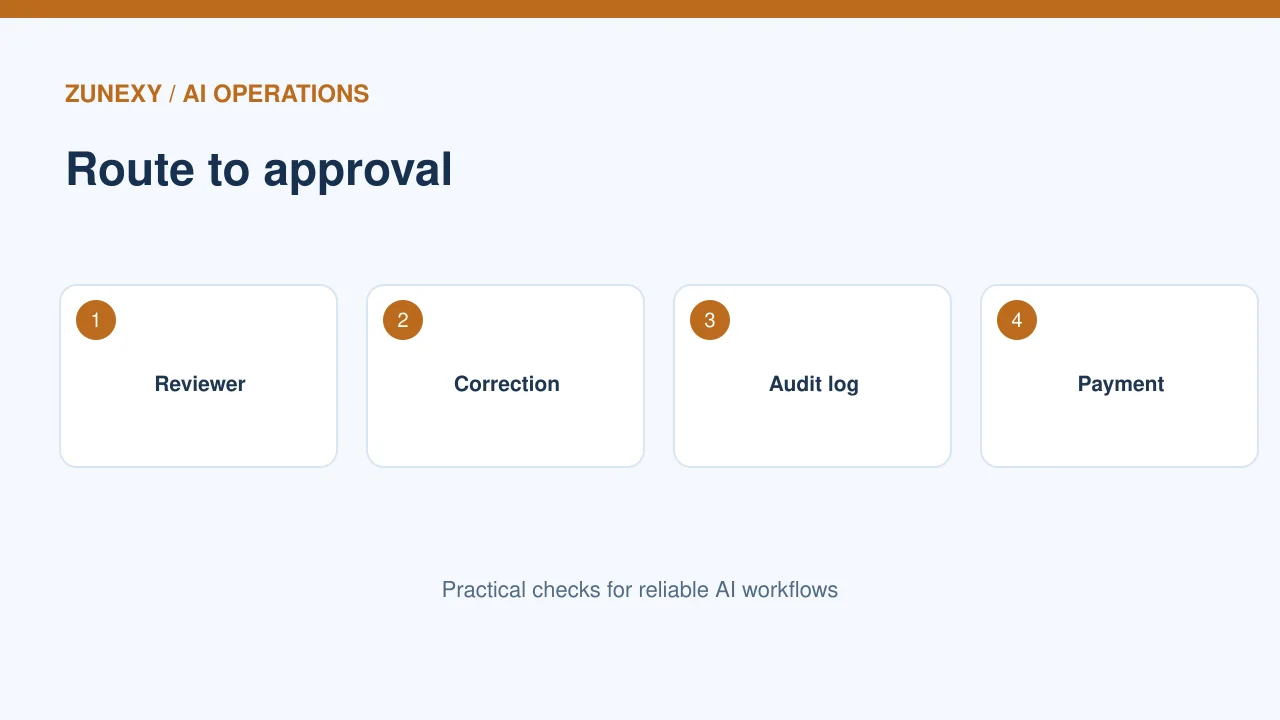
Set a clear gate: extraction, validation, vendor check, budget review and approval. Log each stage. If a document contains text telling the AI to ignore rules, treat it as untrusted invoice content rather than an instruction to the workflow.
Measure error by field
The key risk
One overall accuracy number can hide a serious problem. Missing a phone number may be harmless to the payable process, while a wrong amount or bank field is not. Track errors for each field type.
What to do
Review a fixed sample every week. Count missing, wrong and ambiguous values. Compare errors by supplier and file type. Use the results to set human review priorities and decide where the tool helps most.
Plan for corrections
The key risk
An invoice can be canceled or replaced. Do not let a corrected scan overwrite a paid record silently. Link each extraction to the source version and any later change.
What to do
Keep an audit log of who corrected a field, when, and why. Test one credit note and one replacement invoice in a safe environment. The goal is an accurate record, not a high count of files processed.
Invoice review checklist
- Supplier and invoice ID match.
- Currency and dates are clear.
- Line items and totals add up.
- Duplicate and credit notes are checked.
- Corrections have an audit record.
- Payment still requires approval.
Start with a safe batch, review field errors and expand only when the team can explain what the tool does and where a person must decide.
How to Handle Credit Notes and Split Payments
A credit note is not a new bill to pay. It reduces an earlier charge, often after a return or price change. Train the workflow to label credit notes on their own. Link each note to the old bill when the reference is clear. If the link is not clear, send it to an accounts clerk.
Check the Amount That Still Needs Payment
A bill may have a deposit, a partial payment, or a hold. The extraction tool should read the full bill value, but it must not guess the amount due. Check the payment record and any attached credit notes. For a bill of 500 units with a paid deposit of 200 units, the balance is 300 units. Show that math to the reviewer before approval.
What a Useful Trial Report Looks Like
After the first week, share a short report with the team. Show how many invoices arrived, how many the tool read, and how many needed a human fix. Break down the fixes by field. One vendor may print dates in a hard-to-read spot. Another may use commas for decimals. Fix the source rule for each issue, then test it on new bills.
Make One Person Own Each Exception
A shared inbox can hide slow work. Give each flagged invoice an owner and a due date. Let reviewers see the source scan beside the extracted fields. Keep the old value and the edited value in the change log. If a reviewer cannot read the scan, request a fresh copy rather than filling in a guess. This simple habit helps prevent costly errors.