AI Spreadsheet Assistants in 2026: A Practical Guide to Checking Results
Spreadsheets are full of useful business facts, but they are also easy to misunderstand. One blank row can break a formula. A date may be read as text. A sales total can count a refund twice. AI spreadsheet assistants can help people ask questions, create charts, and work with formulas. They do not remove the need to check the underlying data.
This guide is for small teams that use sheets for budgets, orders, stock, projects, or customer reports. It shows how to prepare the data, ask a clear question, verify the answer, and avoid changing a live workbook by mistake. The goal is to make analysis easier for a person who owns the numbers.
Start With Clean Source Data
Before using an assistant, look at the columns. Give each one a clear name and keep one kind of data in each field. A date column should contain dates, not notes such as waiting for reply. A price field should use one currency or a separate currency column. Remove extra header rows, hidden totals, and merged cells from the analysis range where possible.
Imagine a shop tracking sales across regions. If the sheet mixes USD, EUR, and JPY amounts in one column without a currency label, an AI summary may add them together. That total would be meaningless. Fix the source data or ask the tool to report each currency on its own. Data structure matters more than a clever prompt.
Keep a known-good copy
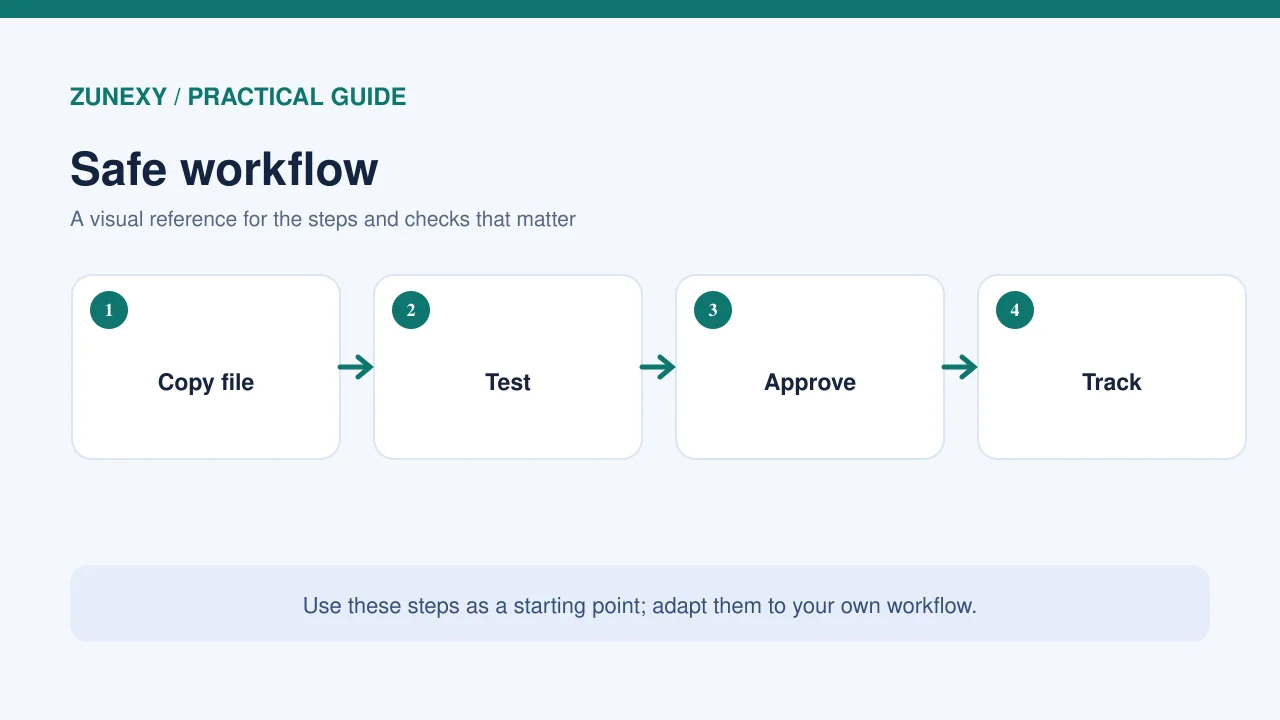
Save a version before asking AI to edit formulas, sort rows, or add columns. Use a test workbook for the first trial. If the assistant changes a formula, compare the before and after versions. A change that looks neat can still break an old report or a named range used by another team.
Ask a Question With a Clear Scope
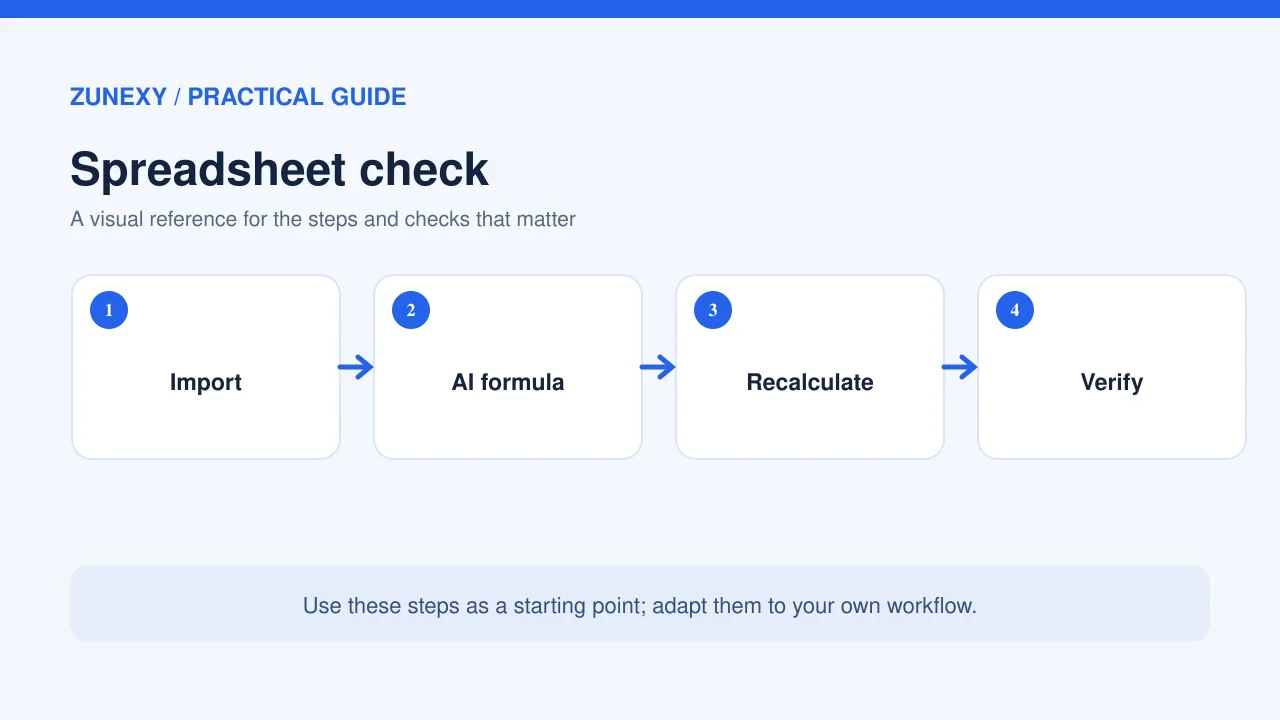
A request such as tell me what happened this month gives the tool too much room to guess. State the period, measure, grouping, and filters. A better question is: compare completed orders by region for September and October, exclude refunded orders, and show each currency separately. Now a reviewer knows what the answer should include.
Ask the assistant to identify the columns it used and to show how it calculated a total. If it cannot explain its data selection, do not use the result for a decision. Keep the prompt short enough for a person to review. Several small questions often produce a clearer analysis than one large request for every possible insight.
What the Popular Tools Can Do
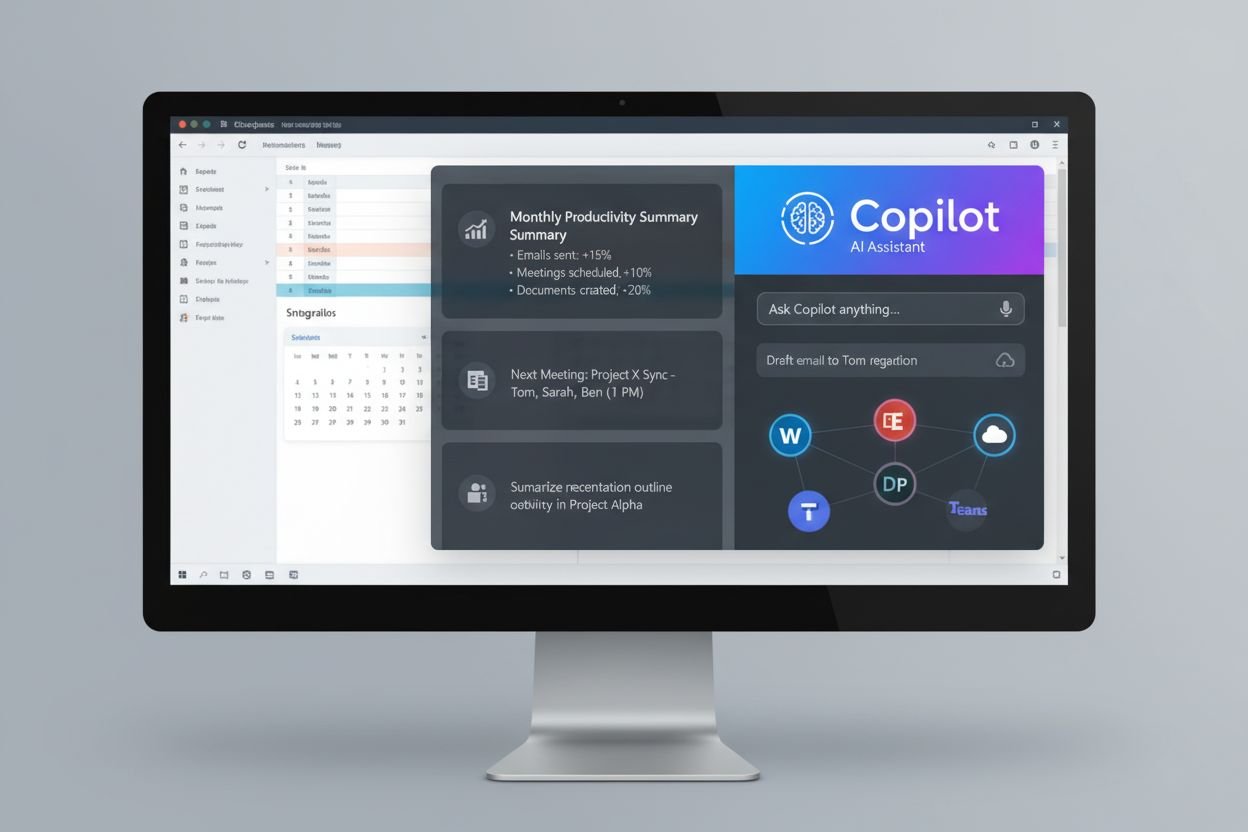
Microsoft Copilot in Excel can help with tables, formulas, PivotTables, charts, and analysis. Its features and access depend on the product, license, and organization settings. Gemini in Google Sheets provides ways to work with sheet content through prompts. Check the current tools in your account, since interfaces and features can change.
Do not compare tools only by how pleasant the chat box looks. Test whether each one can work with your real file size, formulas, dates, permissions, and data quality. A tool that answers a sample question well may struggle with a workbook that has years of custom formulas.
Verify Every Important Number
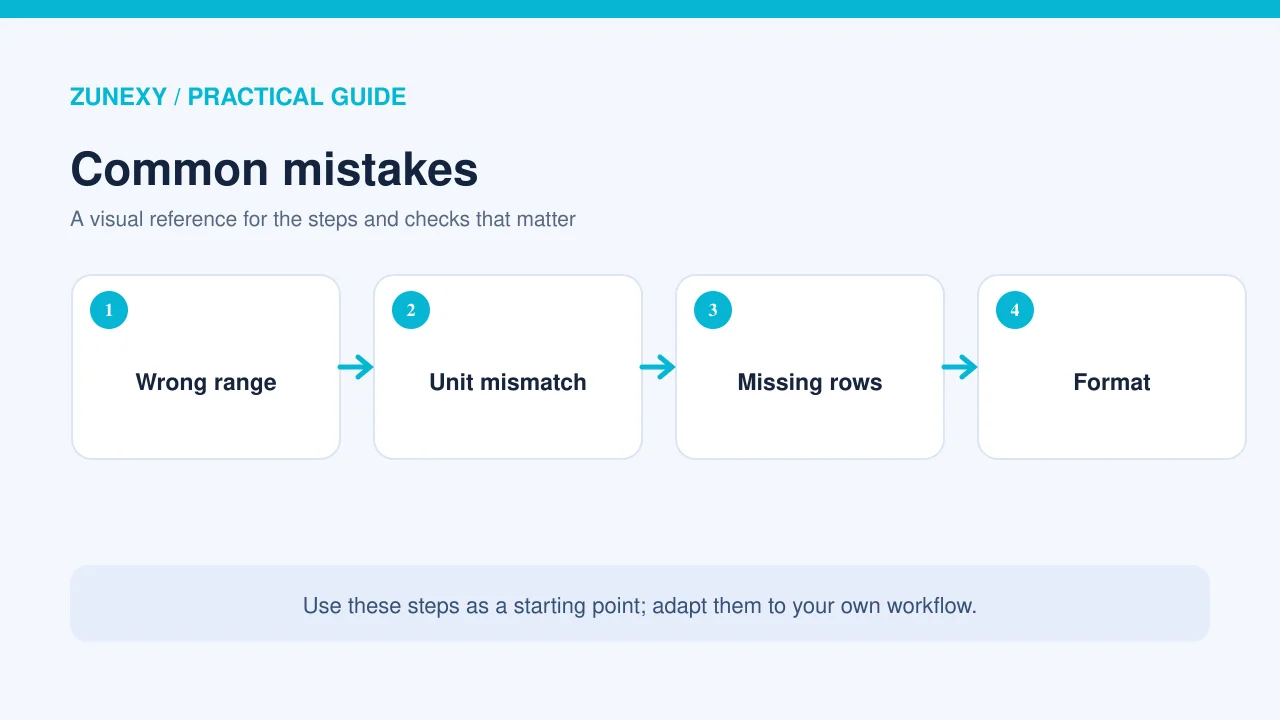
Choose three to five figures you can calculate by hand or with a known formula. Compare the assistant’s result against those checks. For a stock report, verify the count of items below reorder level. For a budget, compare total actual spend against the accounting source. For a marketing report, make sure the date range and filters match.
The Microsoft guidance on Copilot data insights describes ways to trace analysis back to source data. Use source references when available. If the source workbook is wrong, even a correct calculation gives a wrong business answer. Always check the source and the formula.
Watch out for missing values
Blank cells may mean zero, unknown, not yet entered, or not applicable. Those meanings are different. Decide how to treat blanks before calculating an average. In a staff survey, missing answers should not be turned into zero satisfaction scores. In inventory, an empty stock field may signal an incomplete count, not that the shelf is empty.
Use AI for Exploration Before Decisions
It is reasonable to ask for unusual patterns, chart ideas, or plain-English summaries. Treat those as leads to explore. If the assistant says one market grew fast, check the base size and dates. Growth from two orders to four is a 100% rise, yet it may be less important than a steady market with thousands of orders.
Ask follow-up questions that test the claim. Does the pattern remain after returns? Is one customer driving most of the growth? Is the change seasonal? A good assistant helps a person see what to check next. It should not turn a quick observation into a bold business conclusion.
Use Charts That Match the Question
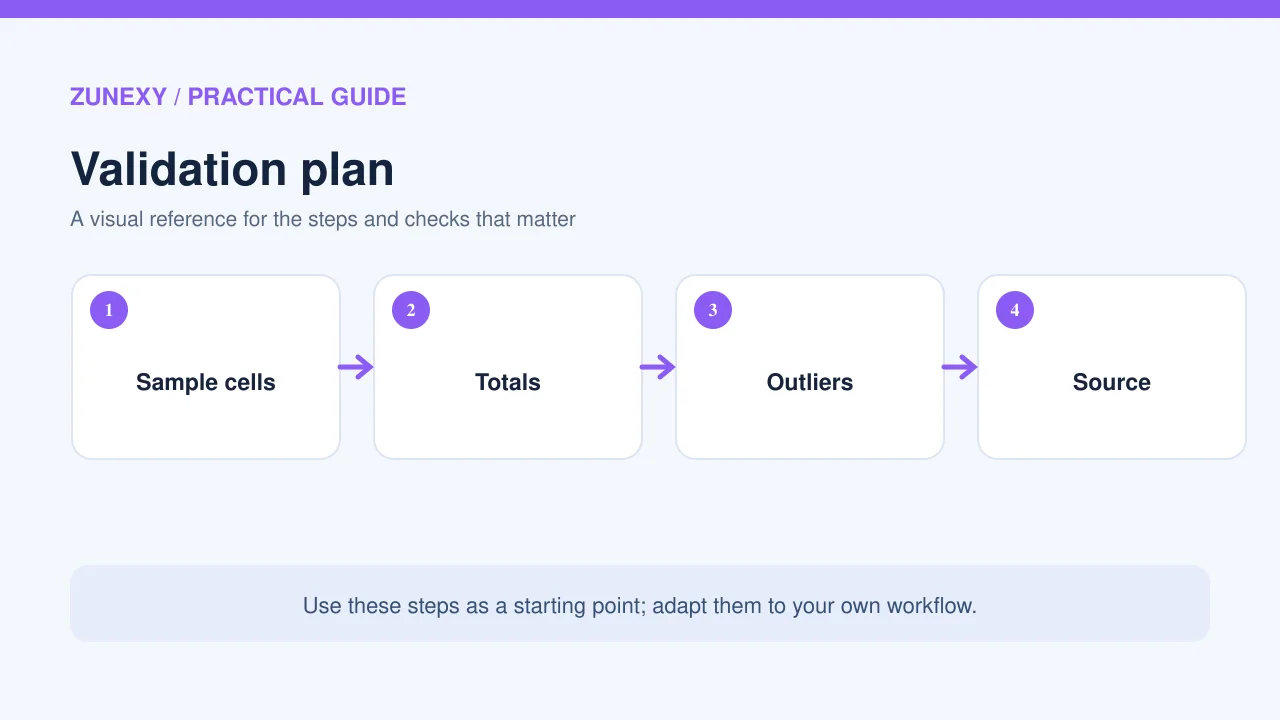
A line chart works well for a trend over time. A bar chart can compare a few categories. A table may be clearer when exact numbers matter. Avoid a crowded chart with twenty series and unreadable labels. Ask for the chart’s underlying data so a reviewer can spot missing groups or an odd axis.
If the tool builds a chart, check units and scale. A small change can look dramatic if the axis begins near the data value. A percentage cannot be compared fairly with a raw amount on one axis. A clean visual should make the truth easier to see, not merely make a slide look polished.
Protect Sensitive Workbook Data
A finance sheet may contain salaries, account details, or confidential forecasts. A customer sheet may hold personal data. Before enabling AI analysis, check the provider’s privacy terms, workspace controls, and access permissions. Use a masked sample for testing when you can. Do not upload a private file to a personal account just to try a feature.
Share the resulting workbook with the same care as the source. An AI-created summary can reveal sensitive totals even if it leaves out names. Limit access by role and remove unnecessary copies. If your team works across countries, check relevant data rules and contract terms rather than assuming one global setting covers every case.
A One-Week Test for Small Teams
On the first day, choose one repeat report that staff already know how to make. Clean the source data and save a copy. On the second day, write five precise questions. Include at least one question with a filter, one involving dates, and one that should return not enough data. Ask the assistant to answer each.
In the middle of the week, compare outputs against known formulas and have another person review the findings. Record errors and how long fixes take. At the end of the week, decide if the tool saves time after verification. Do not count the seconds it takes to make a chart while ignoring the minutes needed to repair its source.
A practical trial scorecard
- Correct answers to known calculations
- Clear source columns and filters
- Time saved after checking and fixing
- Safe handling of blank values and currencies
- Control over workbook edits and sharing
- Useful charts with honest scales
If the tool fails a critical calculation, mark that case as a fail even if its explanation sounds confident. The purpose is a dependable workflow, not a high rating for polished language.
Avoid Three Common Traps
Changing the live workbook too early
Start in a copy and inspect every formula change. Keep a rollback path. A small edit can affect charts or linked reports that do not appear in the active sheet.
Treating a summary as an audit
An AI explanation is not a certified financial or legal review. Use the normal sign-off process for decisions with money, contracts, or personal data. Have a responsible person approve the figures.
Using vague prompts for repeat reports
If a task runs each month, keep a saved prompt with exact dates, fields, and filters. Review it when the data structure changes. A reusable request reduces accidental differences across reports without forcing every analysis into the same template.
Final Takeaway
AI spreadsheet assistants are useful when they make it easier to ask questions and check patterns. Start with clean data, state the scope, trace important numbers, and test changes in a copy. Use the tool to help a person reason about data, not to replace that person’s duty to understand the result.
Sources
Microsoft Copilot in Excel help, Microsoft data insights guide, and Google Sheets Gemini help.