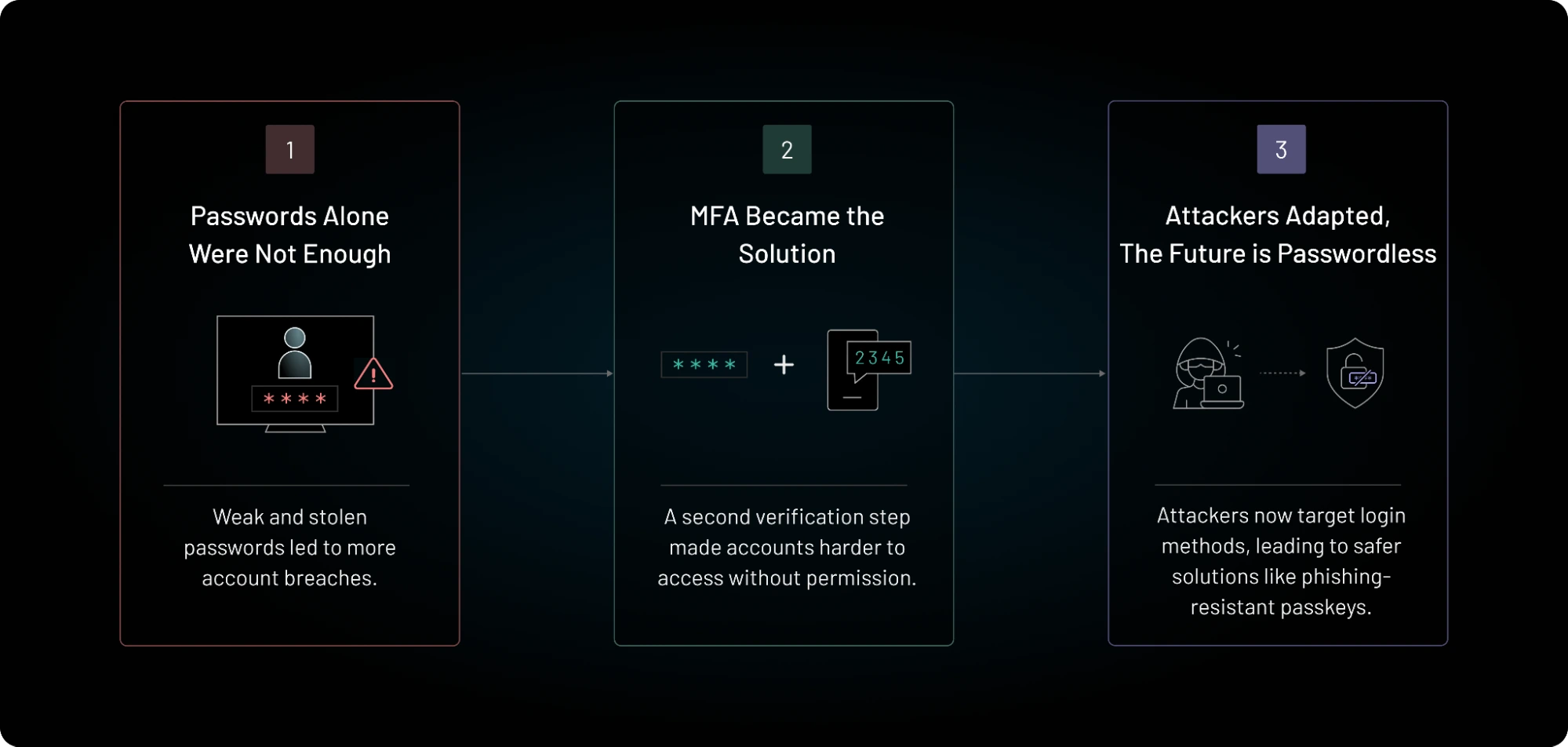
SaaS Session Token Theft in 2026: How Teams Can Reduce the Risk
A secure login does not end the need to protect a live session. This guide helps teams check SaaS sign-in sessions, spot token abuse, and respond without losing the facts. It focuses on lawful defensive steps that work for organizations across regions.
Know What a Stolen Session Means
Why a strong password is not enough
After a worker signs in, an app may keep a session token so the worker does not need to enter a password for each click. If an attacker steals a usable token, they may be able to act as that worker until the token expires or access is stopped. This can happen even when the first login used a strong factor. The Microsoft token theft playbook explains the detection and response problem. Staff do not need to learn token formats, but the IT team must know where session controls live.
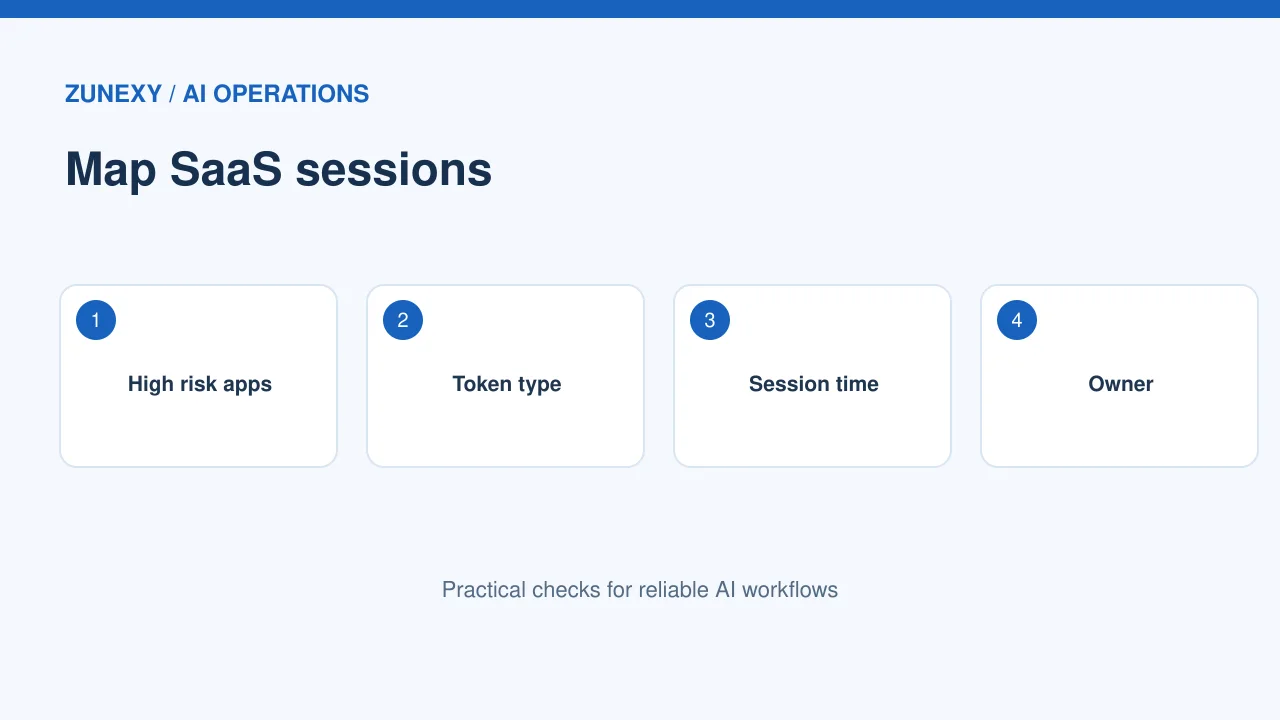
Start with common work apps
List the apps that hold client data, payment records, and admin rights. Add the identity provider, email, file sharing, and customer support system. Note each app’s normal session length and sign-out behavior. Ask the owner how to revoke an active session. Some apps show all active devices; others only offer a global sign-out. Test that control with a harmless pilot user. You need this answer before an alert arrives at midnight.
Check Devices Before Sessions
Update the browser and operating system
Many session risks start on an untrusted device or a harmful browser extension. Keep work devices on supported software and apply security updates. Use managed browser settings for high-risk teams. Limit extensions to ones with a clear work need. A worker who installs a free file converter should not also grant it broad access to every open page. Explain why a browser add-on can be a security choice, then give staff an approved alternative.
Separate personal and work access
A shared family computer creates harder questions about storage, extensions, and who can open a signed-in tab. For admin and financial tasks, use managed work devices where possible. If a firm permits personal devices, set a written policy for updates, screen lock, and account separation. Do not promise that a private browser window solves all risks. It may reduce local history, but it does not replace device trust or strong session controls.
Add Risk-Based Session Rules
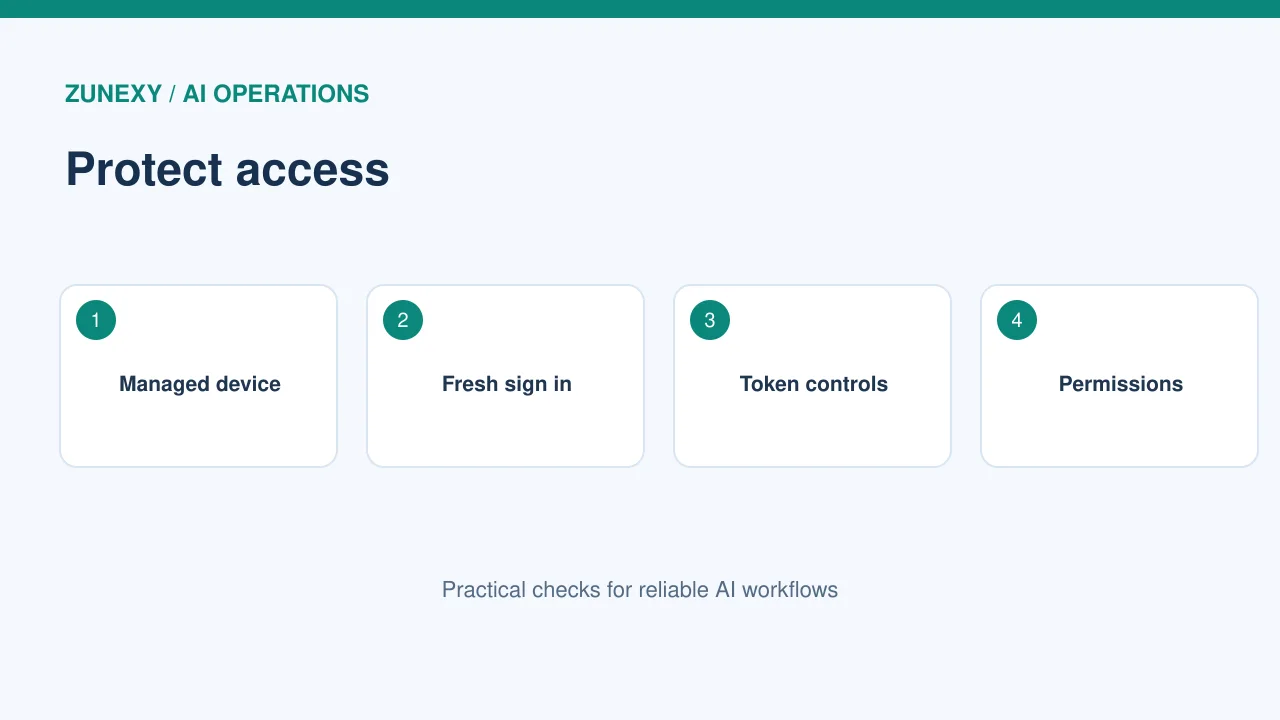
Use device and sign-in signals
An identity service may support rules for a managed device, risky sign-in, location changes, or fresh authentication before a sensitive action. Apply these controls to the most important apps first. The Microsoft Entra token protection guide describes device-bound token protection for supported scenarios. Check platform coverage; do not assume a rule protects every browser and app. Start in report mode when the provider supports it, then inspect real impact before enforcement.
Set a fair reauthentication point
Asking for a fresh sign-in every few minutes can push people to unsafe workarounds. Use shorter sessions where the risk is high and the work is brief, such as changing payment details or granting admin rights. Keep routine low-risk work usable. Test what happens when a worker edits a long form and a session ends. An app that loses work may need a save-draft feature before tighter controls become practical.
Detect Signs of Token Replay
Build a small alert set
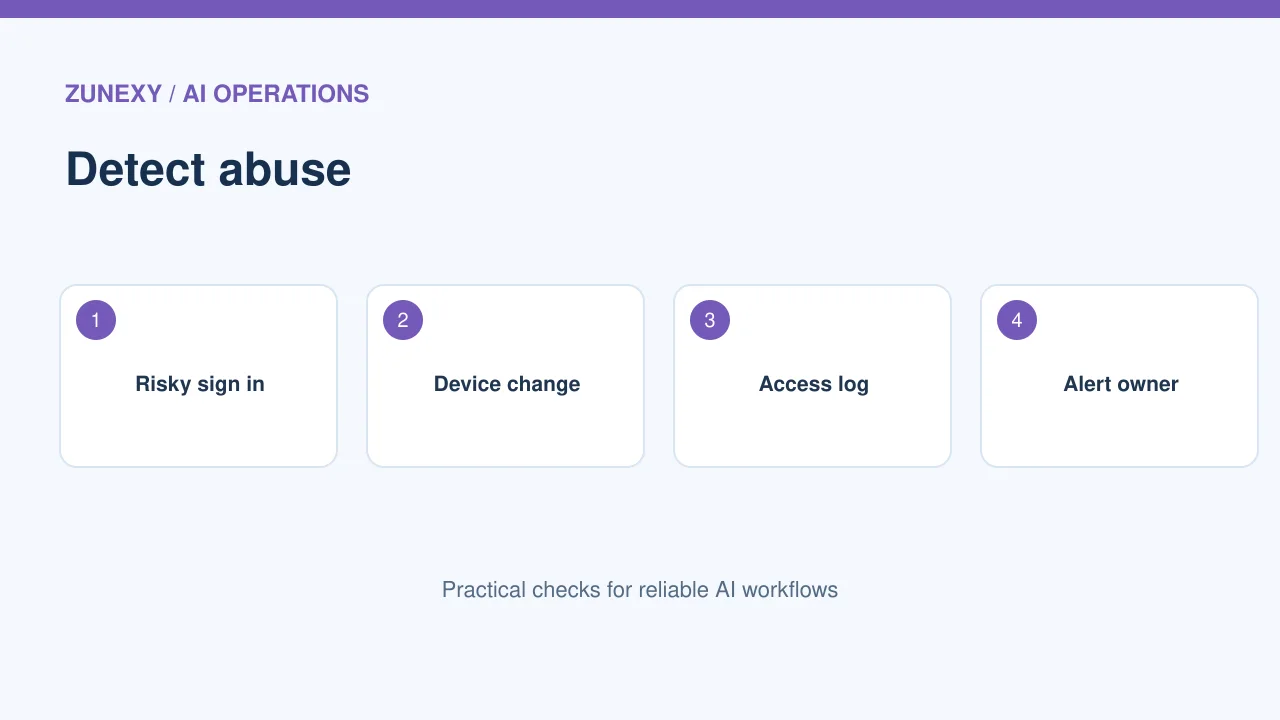
Start with alerts that a person can investigate. Examples include a new device for an admin account, unusual app consent, access after a reported device loss, or a sign-in pattern that the identity provider marks risky. A new country alone is not proof of an attack; travel and mobile networks create false alarms. Pair location clues with device, time, and account behavior. Give the alert an owner and a clear severity rule.
Make logs useful
A log is only useful if it shows who acted, which app was reached, what device was used, and when the event occurred. Check that time zones are clear for staff in different countries. Avoid storing full session tokens or passwords in logs. Limit access to security staff. Review how long each provider keeps sign-in data. If the free plan keeps it briefly, decide whether approved export or a paid retention option is needed.
Respond to a Suspected Theft
Contain the account first
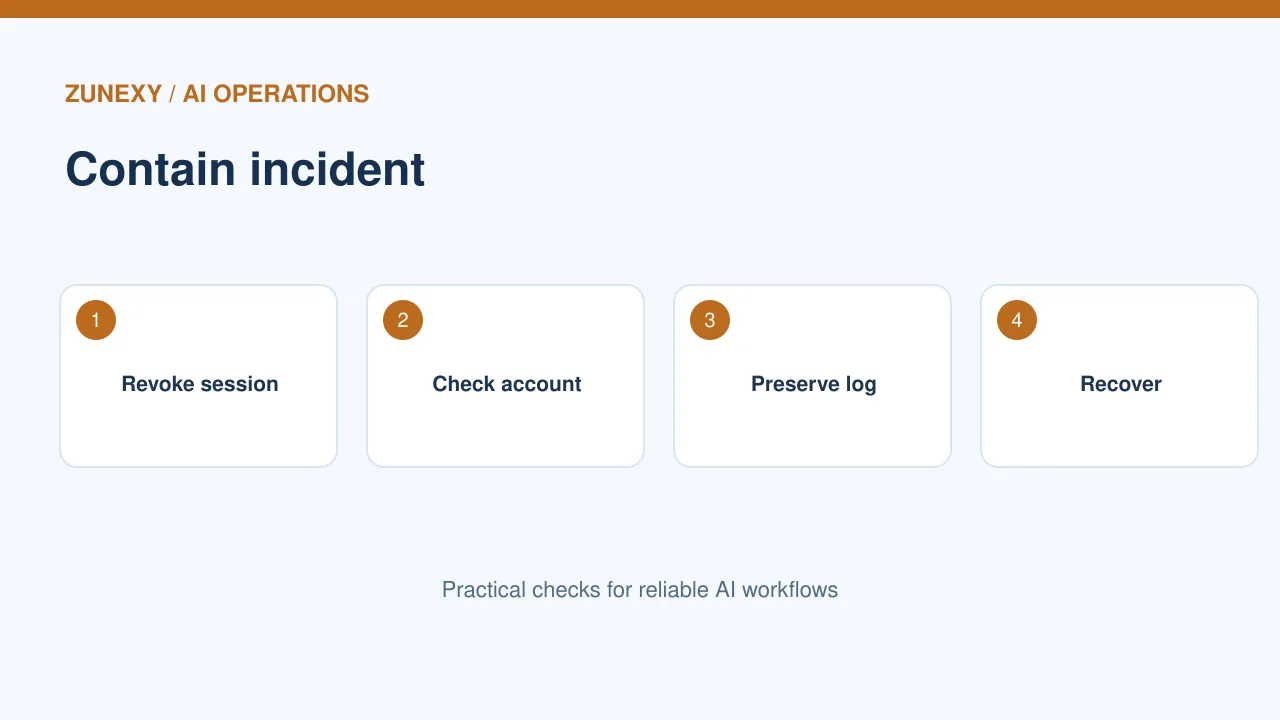
If signs are strong, revoke active sessions through the identity or app admin tools. Reset credentials when needed, but remember that changing a password may not end every existing session on every service. Disable the account for severe cases under the firm’s response plan. Check connected apps and newly granted access. Do not ask the affected worker to keep using a device that might be compromised. Provide a clean route for them to contact support.
Preserve facts without spreading secrets
Write down the first alert, the affected account, devices involved, and the time sessions were stopped. Save relevant logs in the approved evidence store. Avoid pasting tokens, private files, or customer data into casual group chats. The person leading the incident should assign clear tasks: check device health, review app activity, inform the account owner, and decide if legal or customer notice duties apply. Laws vary by region, so follow local advice.
Run a Safe Practice Drill
Use a test account
Create a dummy account with no sensitive data. Sign it in on a test device. Then use the provider’s admin tools to revoke its session. Measure how long it takes for access to stop in the web app and mobile app. Note any delay. Do not attempt real token theft or use production credentials as a drill. The aim is to learn which control works, who owns it, and how quickly the help desk can respond.
Write the playbook in plain steps
A useful page says where to see current sessions, how to stop them, what evidence to keep, and who can approve account recovery. Add screenshots from your own admin console if allowed, and review them when the interface changes. Keep an offline contact list for a major identity outage. The drill should end with one or two fixes, not a long report that nobody reads.
Balance Risk and User Experience
Keep the team informed
Tell staff what suspicious sign-in notices look like and where to send them. Explain that an unexpected sign-in approval or a sudden request to reauthenticate may deserve a quick check. Do not train workers to share screenshots of private account pages in public chats. Give them a secure support route. For global teams, write the guide in clear English and translate key steps with local review when needed.
Track the right outcomes
Count investigated alerts, confirmed incidents, time to session revocation, and repeated false alarms. A low alert count is not always good; logging may be off. A high alert count may mean rules need tuning. Review the trend with IT and business owners each month. Use the results to refine session settings and staff help. The goal is faster safe decisions, not a perfect-looking dashboard.
Close the Gaps Over Time
Review third-party access
Teams often connect project tools, document apps, and browser add-ons using a quick approval screen. A stolen or abused integration can keep access even after a user changes their password. Review which apps have data access and why. Remove unused grants through the proper admin process. Test one removal before a large cleanup so essential work does not stop. Assign each integration a business owner and review date.
Make a clear final check
Every quarter, choose one high-risk app. Confirm supported token controls, session duration, user revocation, device policy, and log retention. Record a test result. If any control is missing, write the risk and the next action. Start with the most valuable accounts, then expand. A small working control beats a large policy that nobody can test.
Final Takeaway
Protect the device, limit risky sessions, test revocation, and give alerts a clear owner. Read provider-specific limits before enabling a control. Session security works best when a team can prove that access stopped and staff can safely return to work.